
How to connect LiveChat to a Turbosite website
LiveChat (livechat.com, a product of Text Inc.) is a premium online chat for business. It is used in SaaS and e-commerce and is especially popular in the US and Europe. It is a paid service ($24+/month per agent) with a 14-day trial period. Installation takes 5 minutes.
What you will need
- A LiveChat account — register at livechat.com (14-day trial period)
- A published website on Turbosite
- 5 minutes
Step 1. Get the installation code
- Register at livechat.com and log in to your account.
- Go to Settings → Channels → Website.
- On the Website Installation page, copy the widget code (click the “Copy code” button).
📷 Screenshot: The Settings → Channels → Website page with the Copy code button.
⚠️ Check for updates: The LiveChat interface is updated regularly. If the sections are named differently, look for “Installation”, “Tracking code”, or “Channels → Website”.
Step 2. Insert the code into Turbosite
-
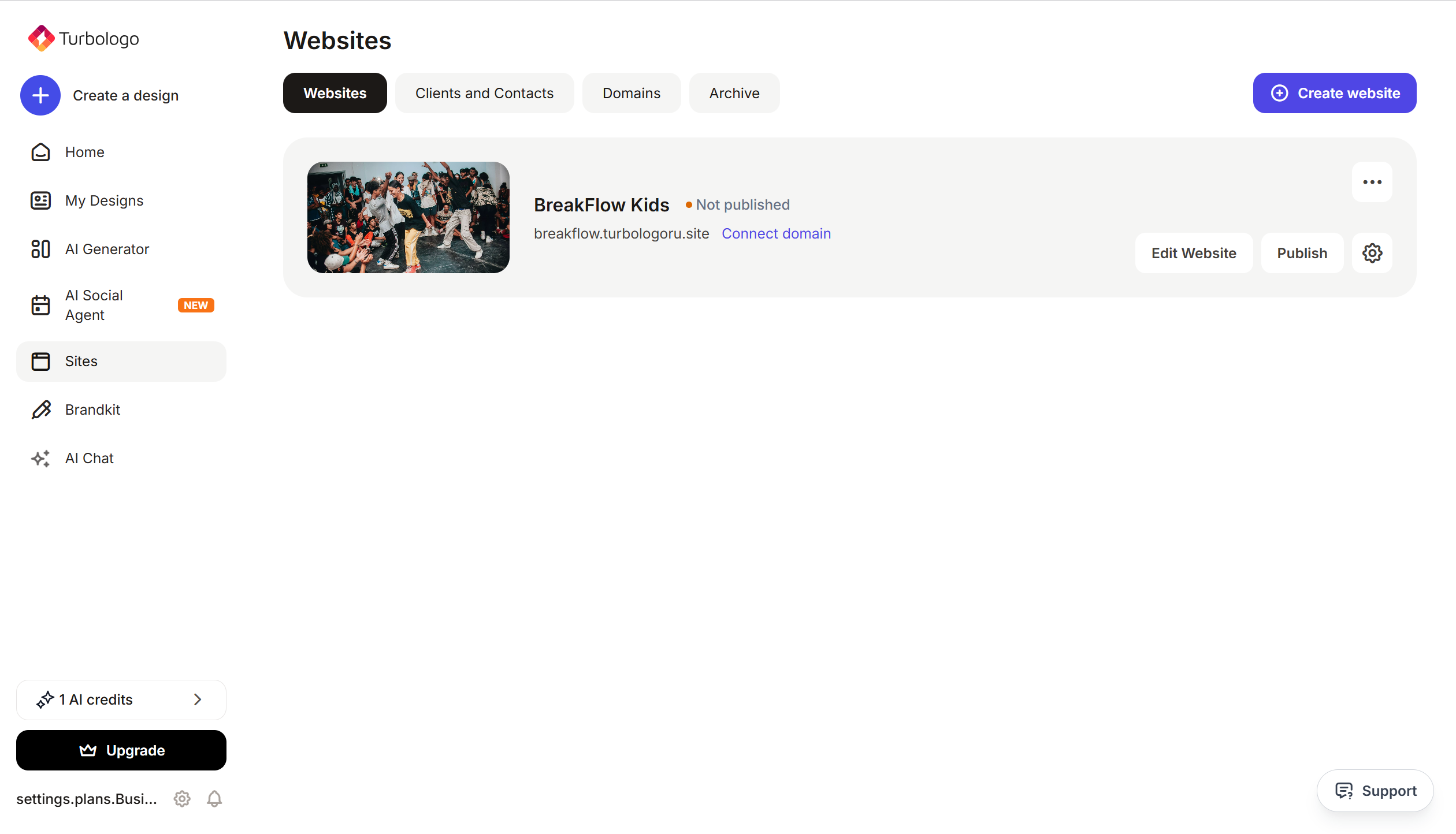
Open your website in Turbosite.
-
Go to Site Settings → Integrations → HTML code in
<head>(this is the service part of the page — visitors do not see it, but scripts from there are loaded when the site is opened).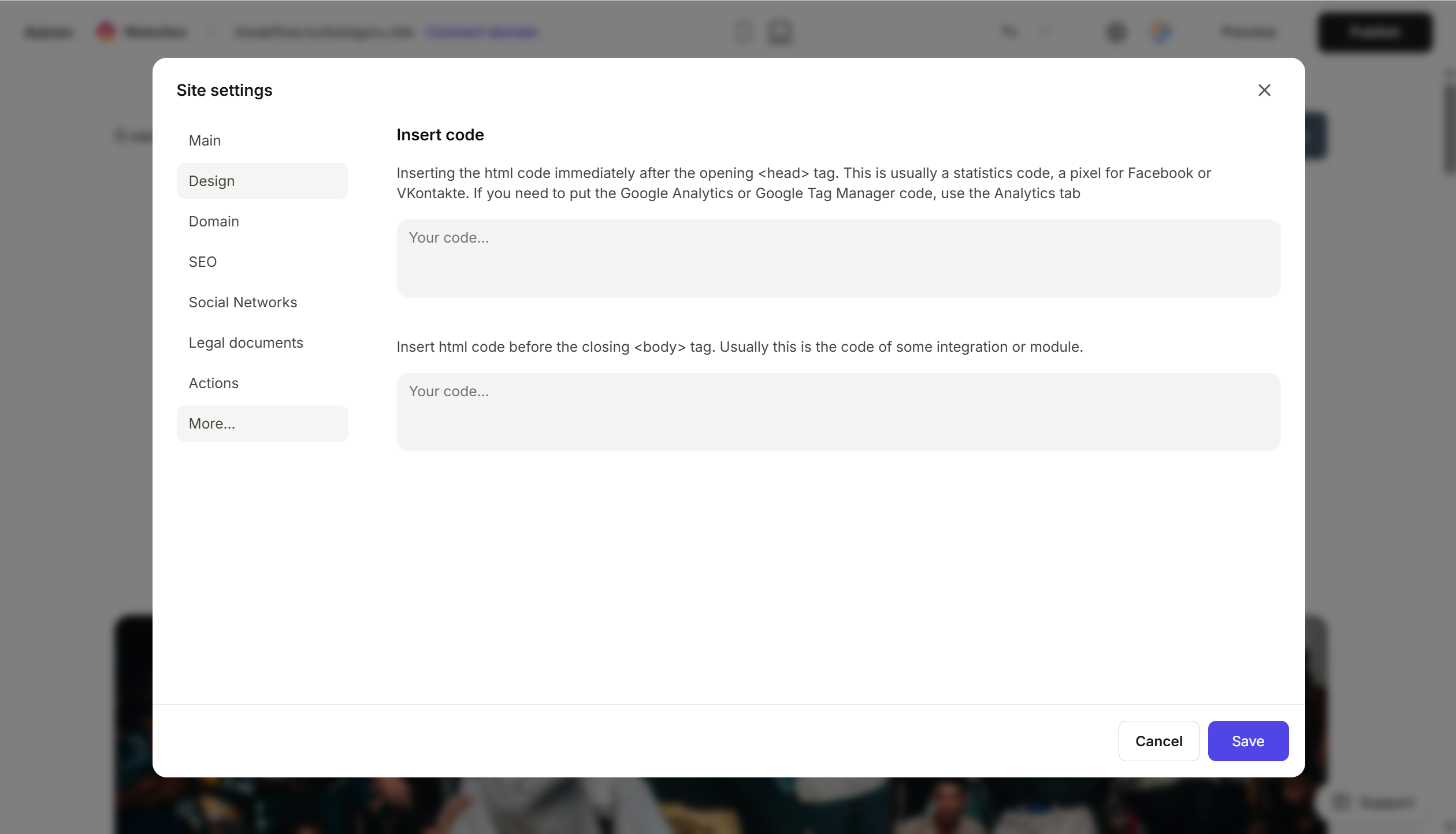
- Paste the LiveChat code into the field.
- Save the changes.
- Publish the site.
Official LiveChat documentation recommends inserting the code before the closing
</body>tag. In Turbosite, only<head>is available — this is a working option, and the widget will load correctly.
Step 3. Verify that the chat is working
- Open your published website in a new tab.
- The chat widget will appear in the bottom right corner after 2–3 seconds.
- Click it and send a test message.
- The message will arrive in the LiveChat application (web, desktop, or mobile).
FAQ
The widget does not appear. Check that the code is complete, the site is published, and there are no ad blockers. There should be no script loading errors from the livechat.com domain in the browser console.
Can I customize the widget design? Yes, in LiveChat → Settings → Chat widget — you can change the color, avatar, welcome message, and position. Changes are applied automatically; you do not need to change the code.
Can I use LiveChat for free? There is no free version. Only a 14-day trial period. The minimum plan is about $24/month per agent. Prices are available on the pricing page.
How does LiveChat differ from Crisp and Tidio? LiveChat is in the premium segment with a focus on a full-featured helpdesk, reports, and integrations. Crisp and Tidio are cheaper and simpler, suitable for small businesses.
How do I respond to messages from mobile? LiveChat is available in the App Store, Google Play, and as a desktop application. Notifications arrive immediately.
Where to look next
- LiveChat Documentation — help center
- Installing LiveChat — step-by-step instructions
- LiveChat Pricing — current prices






