Editing a logo
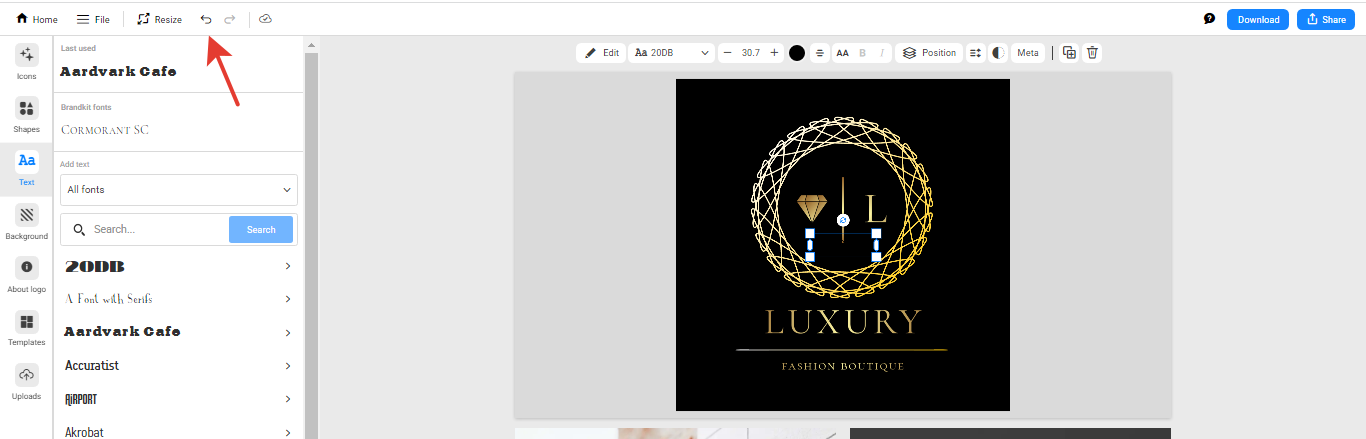
Open the logo: the section panel is on the left (on mobile, it’s at the bottom), and the selected element panel is at the top. Sections: “Color”, “Icons”, “Text”, “Shapes”, “Photos”, “Uploads”. To change text, an icon, or a shape, click on the element — its panel will appear: font and size, color, transparency, and layer order (move forward or backward). Logo and background colors are in the “Color” section, a new icon is in the “Icons” section, and your own image is in the “Uploads” section. You can undo an action using the arrow at the top.
How to edit text in a logo
Change the name or slogan in your logo, change text in your designs, change text color
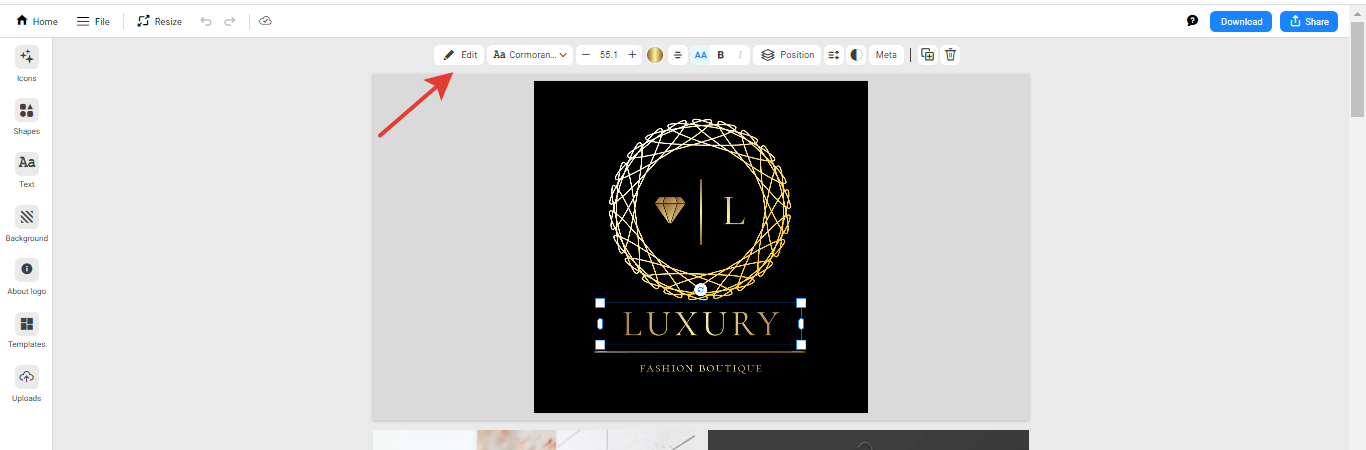
- To edit text in a logo, you need to click on the name or slogan and highlight it. An additional text editing panel will appear.
On the panel, you can edit the text, as well as change the font, font size, alignment, make the text bold, move the text to a layer above or below, change letter or line spacing, and adjust text transparency.
-
To add new text, you need to click on the Text section on the editing panel, then enter your text instead of the word “Text”.
-
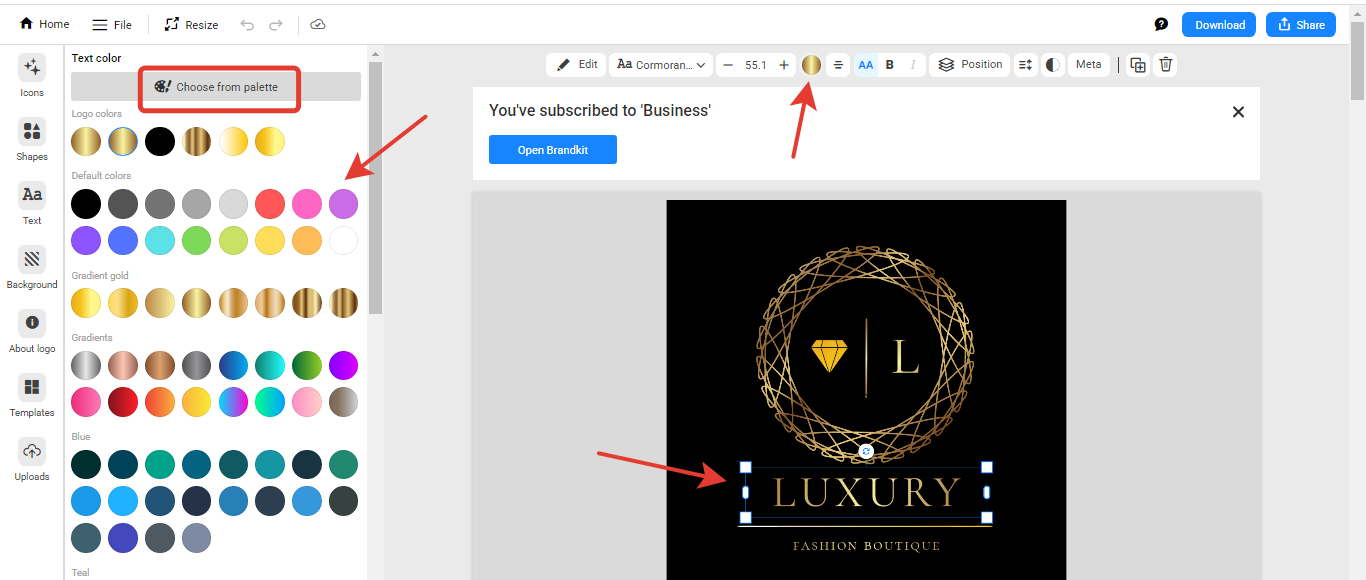
To change the text color in the logo, you first need to highlight the text, then select the color circle on the element editing panel that appears. The color selection panel has two tabs: “Colors” — ready-made colors and gradients, and “Custom Color” — a color wheel for selecting a shade and a field for the color code in HEX format (e.g., #1A73E8). In the “Custom Color” tab, you can also set up your own gradient using two colors.

How to edit an icon or add a new icon to a logo
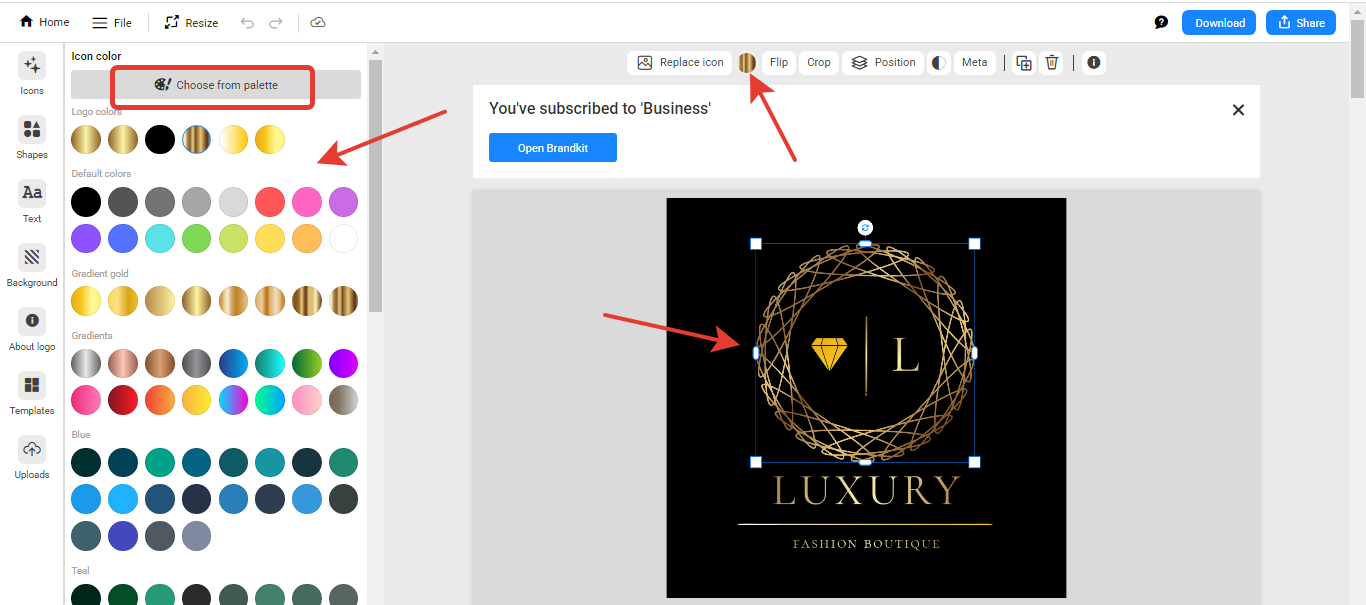
- To edit, you need to select the icon by clicking on it. Another icon editing panel will appear. On a computer or laptop, the panel will appear at the top. On a mobile device, the panel will appear at the bottom.
To change the icon color, select the color circle on the panel. The color selection panel has two tabs: “Colors” — ready-made colors and gradients, and “Custom Color” — a color wheel for selecting a shade and a field for the color code in HEX format; you can also set up your own gradient there.
You can also crop or flip the icon, change transparency, duplicate the icon (“Duplicate”), replace it (“Replace icon”), and move it to a layer below or above (“Arrangement”).
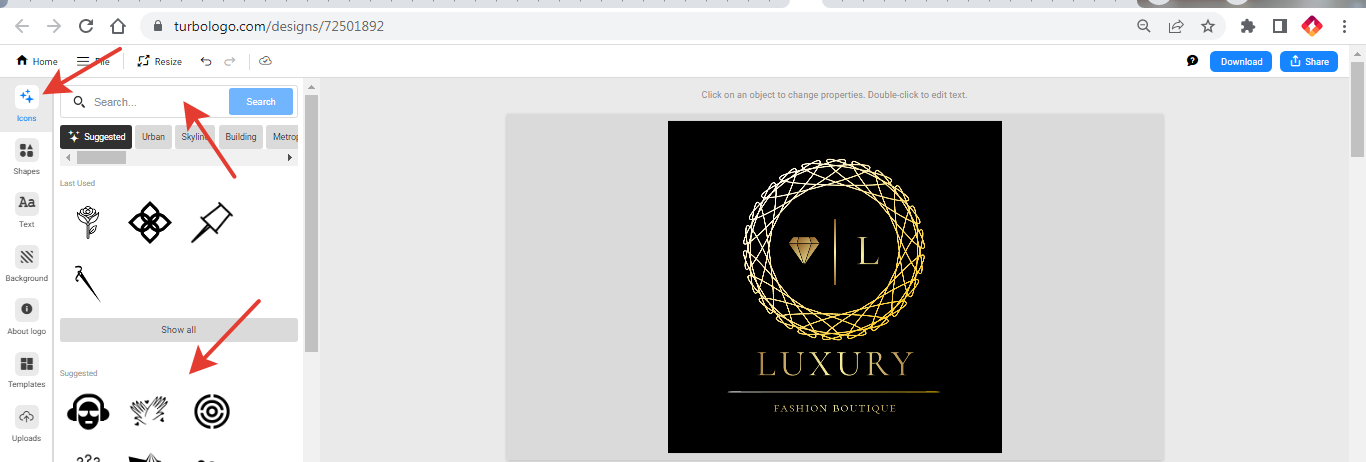
- To add a new icon, click on the “Icons” section on the logo editing panel. An icon selection menu with a search bar will appear. Here you can select previously used icons. You can also enter a keyword into the search bar and then add a new icon from the search results.
You can add multiple icons.
How to change the background color
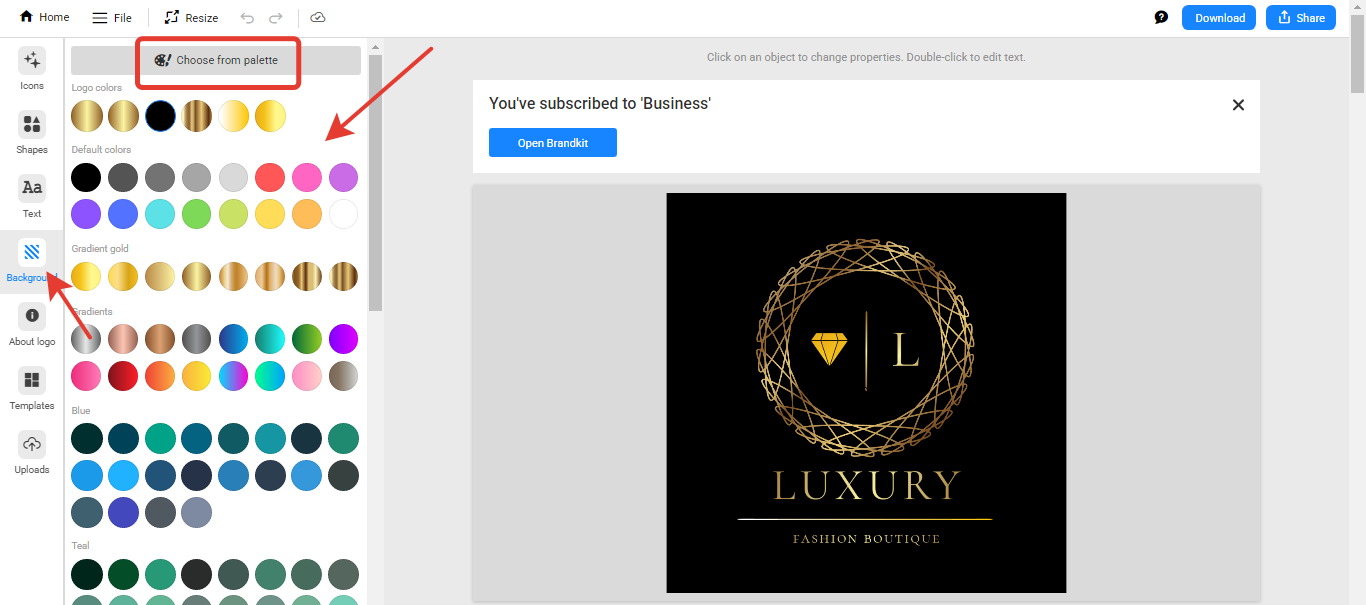
The background color and color scheme of the logo are changed in the “Color” section on the left panel. The color selection panel has two tabs: “Colors” — ready-made colors and gradients, and “Custom Color” — a color wheel for selecting a shade and a field for the color code in HEX format; your own gradient can also be configured there.
How to add a shape or frame to a logo, editing shapes
- Shapes, frames, containers, flourishes, and lines are located in the Shapes section on the editing panel.
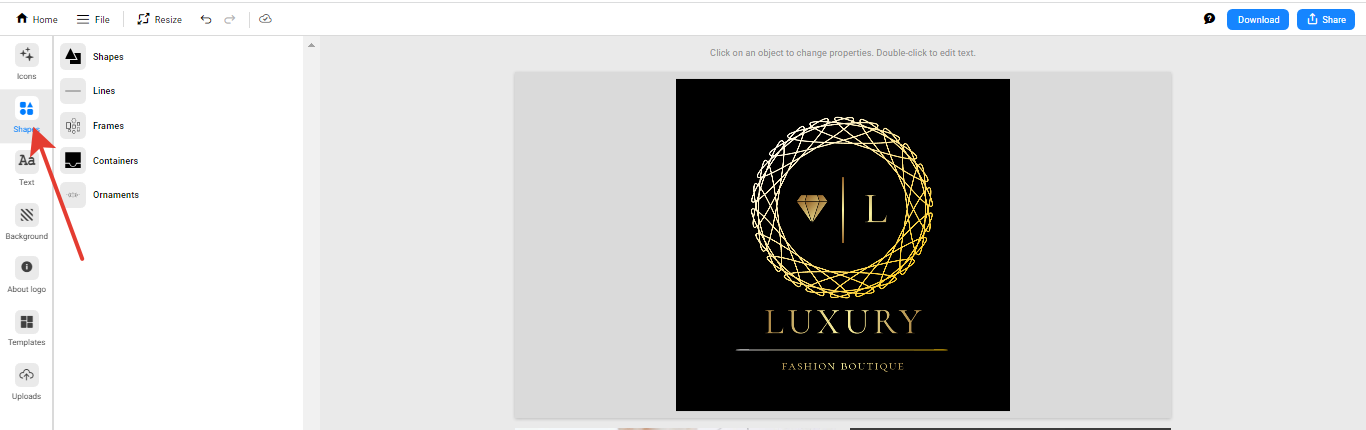
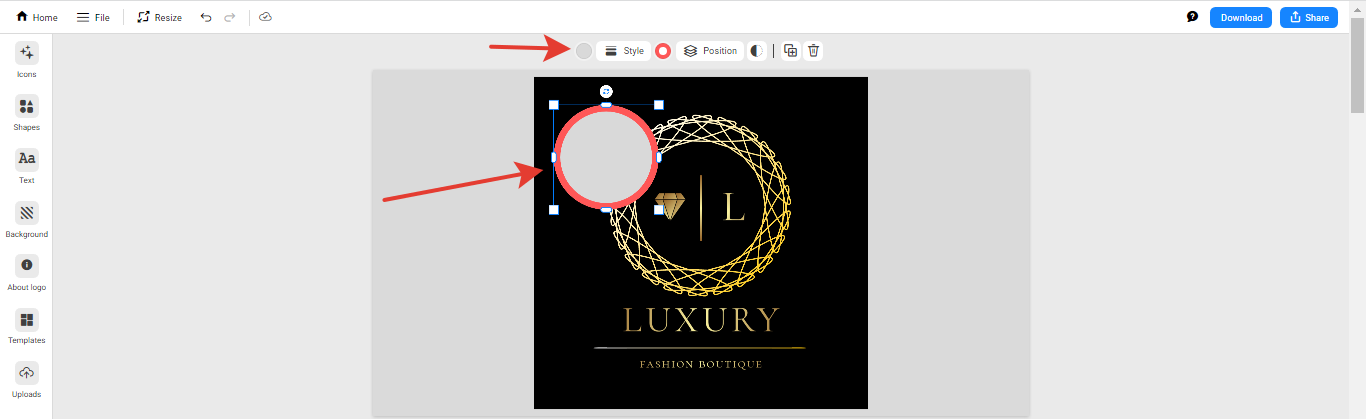
- To edit a shape, you need to select it, and an editing panel will appear. You can change the border color of the shape and the fill color inside the shape. You can also choose the line style (solid or dashed) and the line thickness. You can also edit the shape’s transparency and move shapes to a layer above or below.
Change the logo template
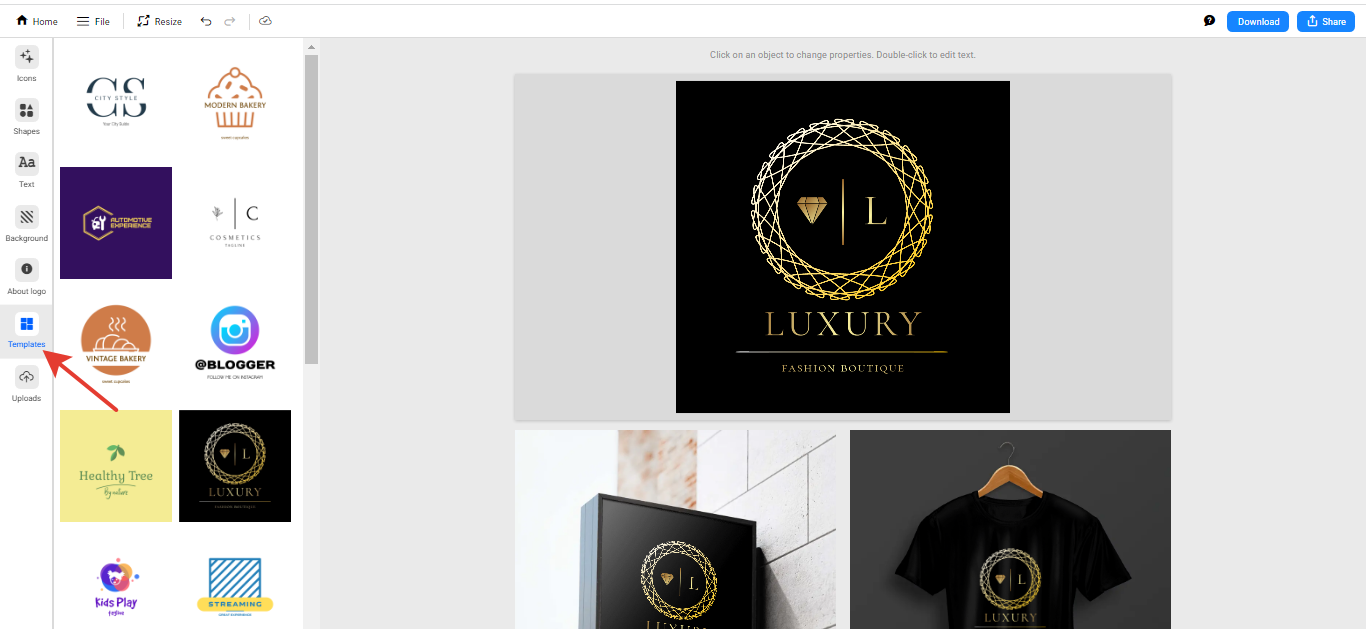
There is no “Templates” section in the logo editor: you choose a different option in “My Logos” on the main page (where a new logo is also created), and logos from the AI generator have a “Styles” section. You will need to change the name and slogan in the new version yourself.
We recommend making a copy of the logo and working with the copy so you don’t lose the original version. You can read how to make a copy in this article
How to upload your own icon, image, or photo to a logo
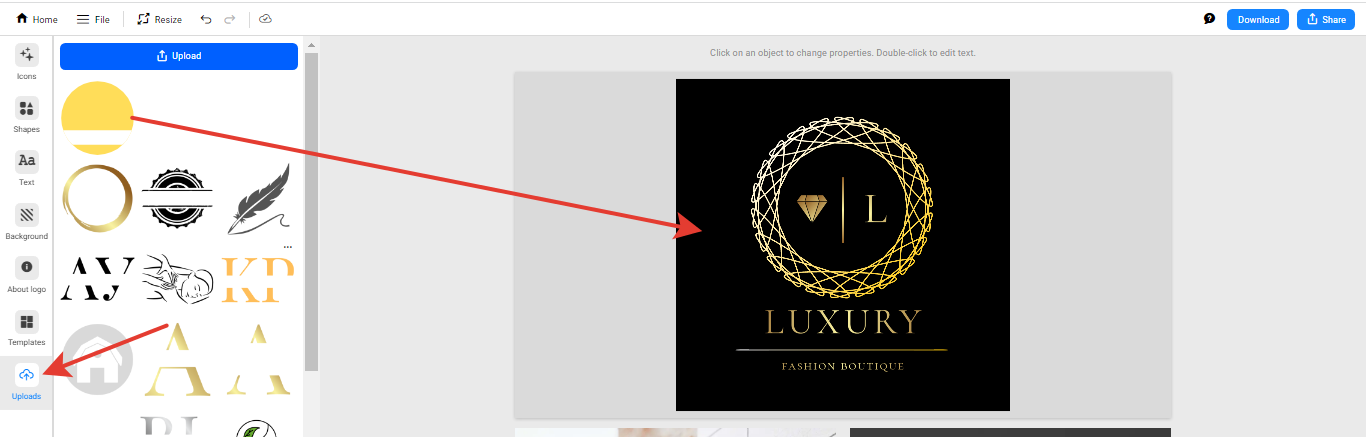
You can upload your own image to the site. To do this, select the “Uploads” section on the design editing panel. Supported formats are PNG, JPG, SVG; size up to 10 MB (SVG up to 1 MB). We also recommend uploading images with a transparent background.
After uploading your icon or image to the menu on the left, you need to drag the element into the logo.
Important: if you accidentally edited the logo or changed the logo template, there is an undo arrow at the top. If the undo arrow is not active, you will need to perform the editing in reverse, as we do not store previous versions of the logo. You can also check the “My Logos” section; you might still have a similar version of the logo.