
How to connect an amoCRM form to a Turbosite website
amoCRM is a Russian CRM system popular for services and B2C. You can embed a feedback form on your website: when a visitor submits a request, it automatically enters the CRM as a lead. No intermediary email, minimal lost leads. Installation takes 10–15 minutes.
What you will need
- An amoCRM account — register at amocrm.ru (a trial period is available)
- A published website on Turbosite
- 10–15 minutes
Step 1. Create a form in amoCRM
- Log in to amoCRM.
- Go to “Leads” → settings icon (gear) → “Setup pipeline”.
- In the left panel, find the “Sources” block → click ”+ Add source” → “Feedback form”.
- In the form builder:
- Add the necessary fields (Name, Phone, Email — usually sufficient).
- Customize the design: color, font, background.
- Set the subject and button text.
- On the “Form settings” tab, specify:
- Form name (visible only in CRM).
- Which pipeline status the lead should enter.
- Tags for easy filtering.
- Click “Save”.
📷 Screenshot: amoCRM form builder with field and style settings.
Step 2. Get the form code
- After saving the form, click “Place on site” (or “Get code”).
- Select the standard HTML code for embedding on any site (not WordPress-specific).
- Copy the entire generated code.
📷 Screenshot: “Place on site” window with two versions of the code and a copy button.
⚠️ Check for updates: the amoCRM interface is updated regularly. If the sections are named differently, look for “Leads → Setup pipeline → Sources → Form”.
Step 3. Insert the code into Turbosite
An amoCRM form consists of two parts: a script that needs to be loaded and a container where the form will be rendered.
If you want the form to appear in a specific place on the page:
- Open your site in Turbosite.
- Add an “HTML code” block to the desired place on the page.
- Paste the amoCRM form code.
- Save the changes.
- Publish the site.
📷 [Turbosite screenshot — to be added: HTML code block in the page body with the amoCRM form].
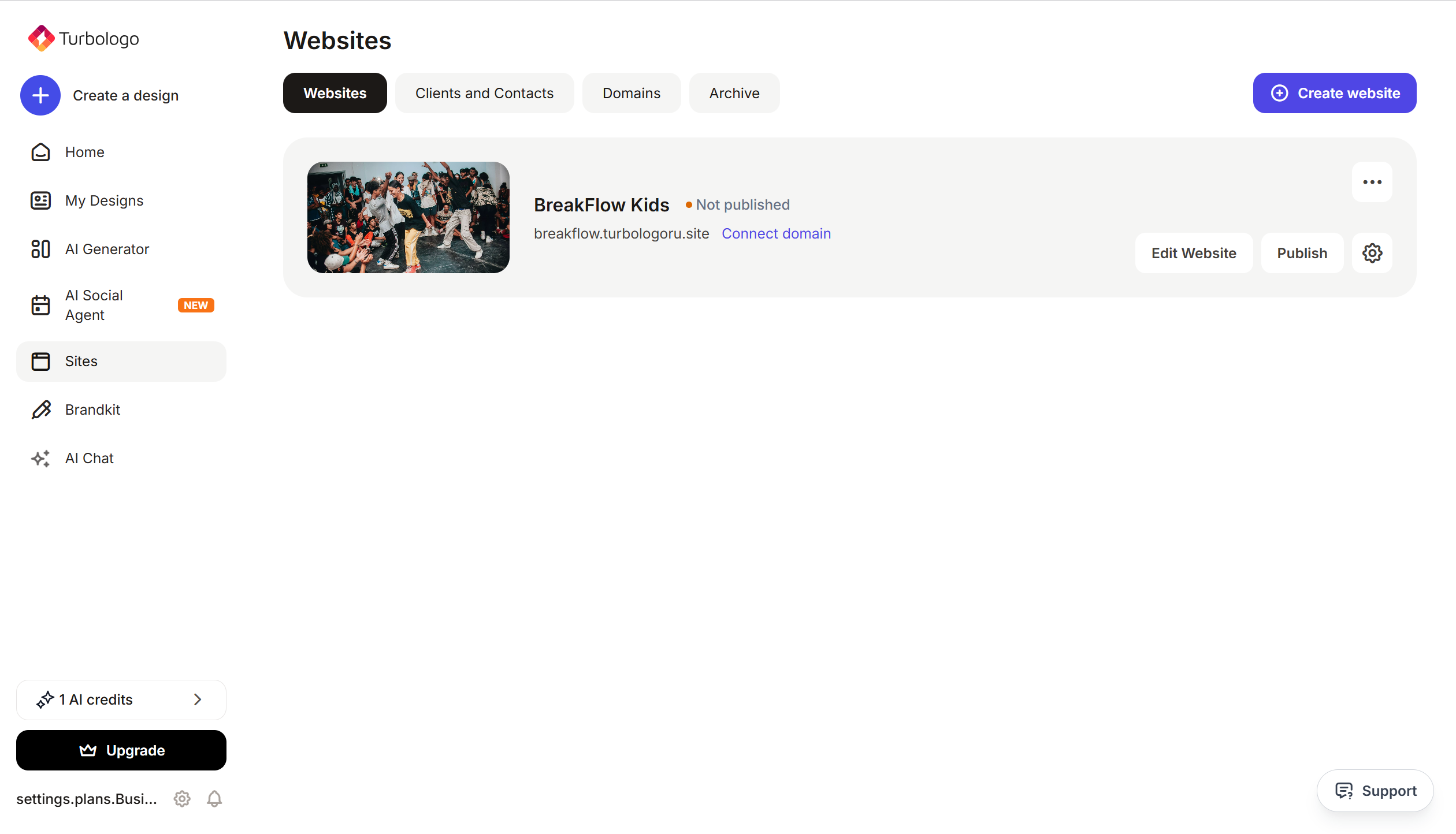
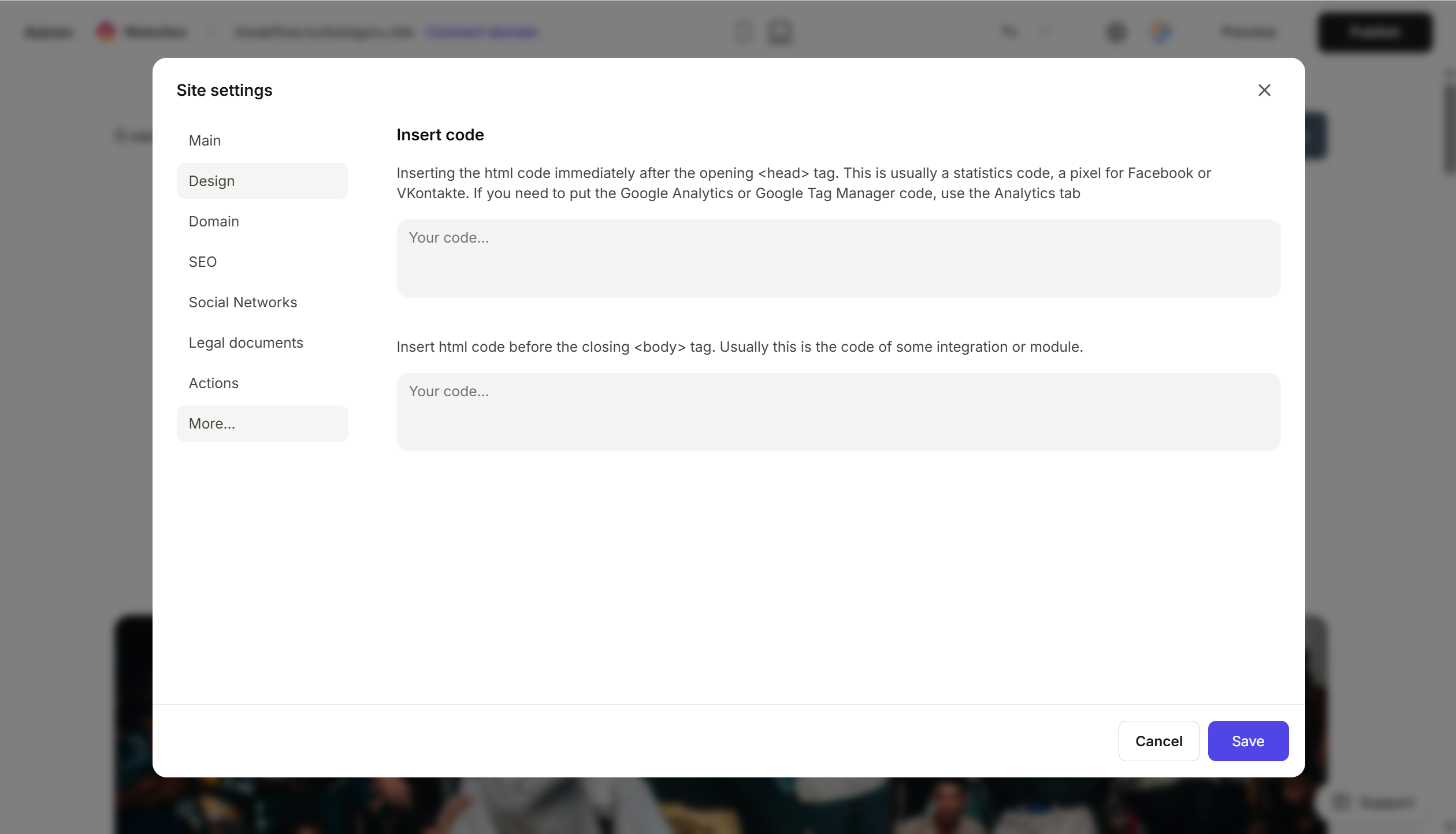
If you want the form to appear globally (pop-up) — insert the code into Site settings → Integrations → HTML code in <head>:
Step 4. Verify that requests are arriving
- Open the published site.
- Fill out the form with test data and submit it.
- Open amoCRM → “Leads” — a new lead with your data should appear.
If the lead does not appear, check that the code is fully inserted, the form is active in the amoCRM settings, and the site is published.
FAQ
The form is not displayed on the site.
Most often, the code is not fully inserted. Copy the code again and check that all <script> and <div> tags are in place. Also, check that no script blocker is being used.
Can I style the form to match my site? Basic styling (colors, font) is available in the form builder. Advanced customization (custom CSS) is available on paid amoCRM plans in the form settings section.
Can I use multiple forms on one site? Yes. Create several forms in amoCRM (e.g., “Landing page request” and “Newsletter subscription”), get a unique code for each, and insert them into different parts of the page. Each will have its own source in the CRM.
How do I set up notifications for new requests? In amoCRM, you can enable notifications via Telegram, email, or SMS. This is configured in the “Settings” → “Notifications” section.
Where to look next
- amoCRM Help — official documentation
- Forms section — detailed information about the builder
- amoCRM API — for advanced integration with development






