
How to connect Termly to a Turbosite website
Termly is an American legal compliance service for websites. It is similar to Iubenda but with a greater focus on US legislation (CCPA, COPPA). It generates privacy policies, terms of service, cookie banners, and disclaimers. There is a free plan with basic features, and paid plans start at $10/month. Installation takes 10–15 minutes.
What you will need
- A Termly account — register at termly.io (free plan available)
- A published website on Turbosite
- 10–15 minutes
Step 1. Generate a policy and banner
- Register at termly.io.
- In the dashboard, click «+ Add a new website» and enter your website URL.
- Create the necessary documents: Privacy Policy, Terms of Service, Cookie Policy — use the builder to answer questions about your business.
- In the «Consent Management» section, configure your cookie banner: design, languages, laws (GDPR, CCPA, etc.).
📷 Screenshot: Termly dashboard with configured documents and banner.
Step 2. Get the cookie banner code
- In the dashboard, go to Consent Management → Settings → Installation (or a similar section).
- Copy the entire JavaScript code.
📷 Screenshot: Installation page with the generated script.
⚠️ Check for updates: The Termly interface is updated frequently. If the sections are named differently, look for “Installation”, “Embed”, or “Get script”.
Step 3. Insert the code into Turbosite
The Termly script must load before all other scripts on the site — it manages consent.
-
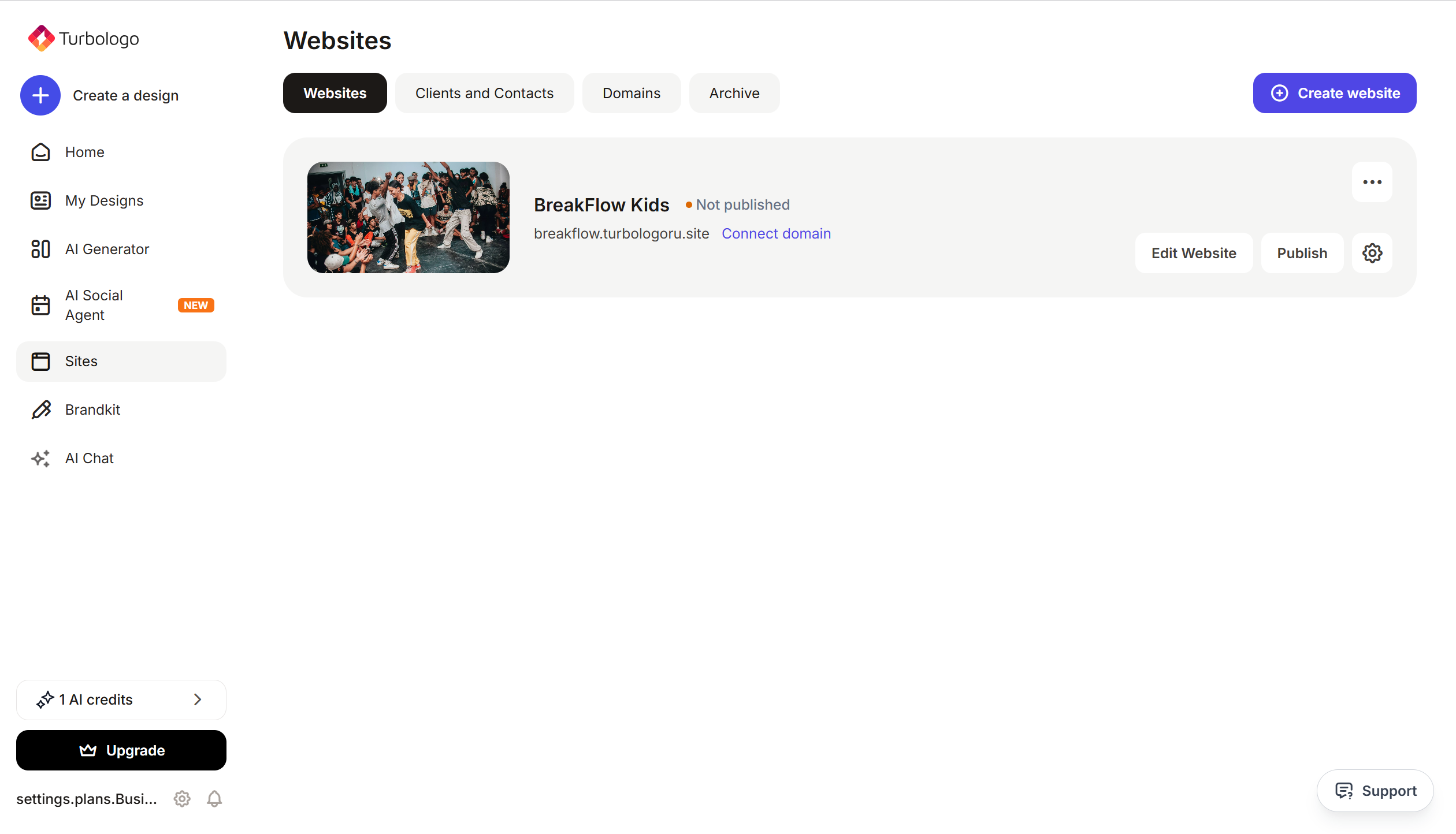
Open your website in Turbosite.
-
Go to Site Settings → Integrations → HTML code in
<head>(this is the service part of the page — visitors do not see it, but scripts from there are loaded when the site is opened).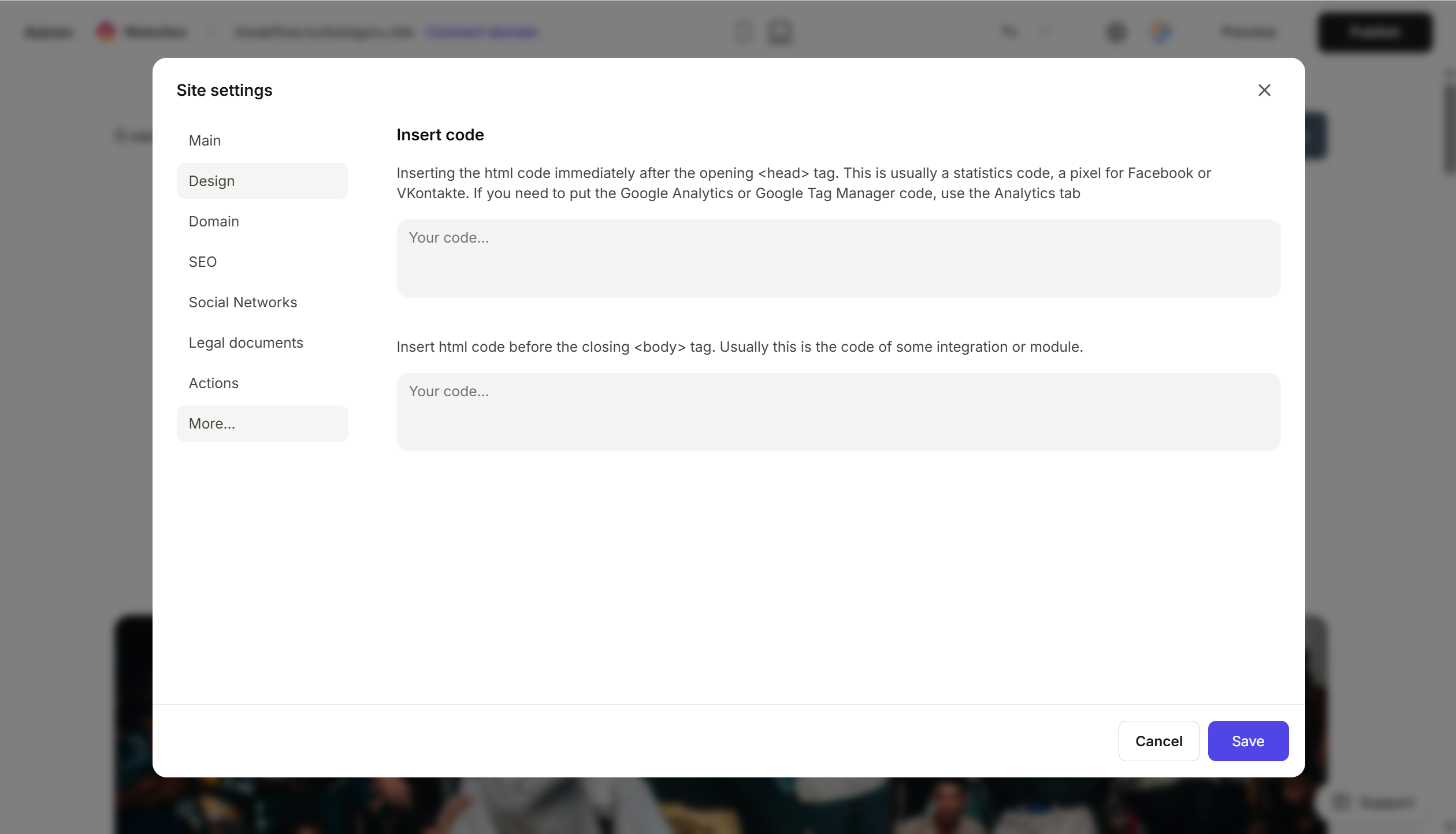
- Paste the Termly script at the very beginning of the HTML code field, before all others.
- Save and publish.
Step 4. Add links to the policy and terms
- In Termly, on the page for each document, find the «Embed» or «Get link» button.
- Copy either the HTML button or the direct link.
- In Turbosite, add an HTML block to the page footer and paste the code. Or simply add text links in the footer with the policy URL.
Step 5. Verify that everything works
- Open your published website in incognito mode.
- The cookie banner should appear at the bottom or side of the screen.
- Check the banner buttons: “Accept”, “Reject”, “Settings”.
- Click the link in the footer — it should open the policy page on termly.io.
FAQ
How much does it cost? Free — basic policy, simple banner. Basic — $10/month. Pro — $19/month. Pro+ — $39/month. Pricing.
How is Termly different from Iubenda/Cookiebot? Termly is stronger in US laws (CCPA, COPPA). Iubenda is more international and supports many jurisdictions. Cookiebot is a European leader in cookie management.
Can I use Termly for the Russian 152-FZ law? Support is limited — Termly is primarily aimed at Western laws. For 152-FZ, it is better to look at Iubenda or Russian solutions.
Does the banner update automatically when laws change? Yes, on paid plans. This is one of the key advantages of Termly — you don’t have to track changes manually.
The banner does not appear on the site. Check the completeness of the code, its location (it must be at the very beginning of the head), publication status, and ad blockers.
Where to look next
- Termly Help Center — official documentation
- Cookie Consent Banner — step-by-step instructions
- Pricing — current prices






