
How to connect Iubenda to a Turbosite website
Iubenda is an Italian service for legal website compliance. Its main difference from Cookiebot and CookieYes is that it immediately generates privacy policy, terms and conditions, and cookie banner texts adapted to the laws of 12+ jurisdictions (GDPR, CCPA, LGPD, Russian 152-FZ, etc.). It is a paid service (starting from $4.99/month per document or $36/year for an extended set), and a free plan is available. Installation takes 10–15 minutes.
What you will need
- An Iubenda account — register at iubenda.com (free plan available)
- A published website on Turbosite
- 10–15 minutes
Step 1. Generate a privacy policy and cookie banner
- Register at iubenda.com and click “Create a website”.
- Enter your website URL.
- In the policy generator, select the services and trackers you use on your site (Google Analytics, Meta Pixel, chat, forms, etc.). Iubenda will generate the corresponding texts.
- Connect the cookie banner on the same page: configure the design, languages, and laws.
📷 Screenshot: Iubenda dashboard with configured services and banner.
Step 2. Get the cookie banner code
- In your dashboard, go to the Cookie Solution → Embed code section.
- Copy the entire JavaScript code.
📷 Screenshot: page with the cookie banner code and copy button.
⚠️ Check for updates: the Iubenda interface is updated regularly. If the sections have different names, look for “Cookie Solution”, “Embed code”, or “Get script”.
Step 3. Insert the code into Turbosite
Like any cookie banner, the Iubenda script must load before all other scripts on the site.
-
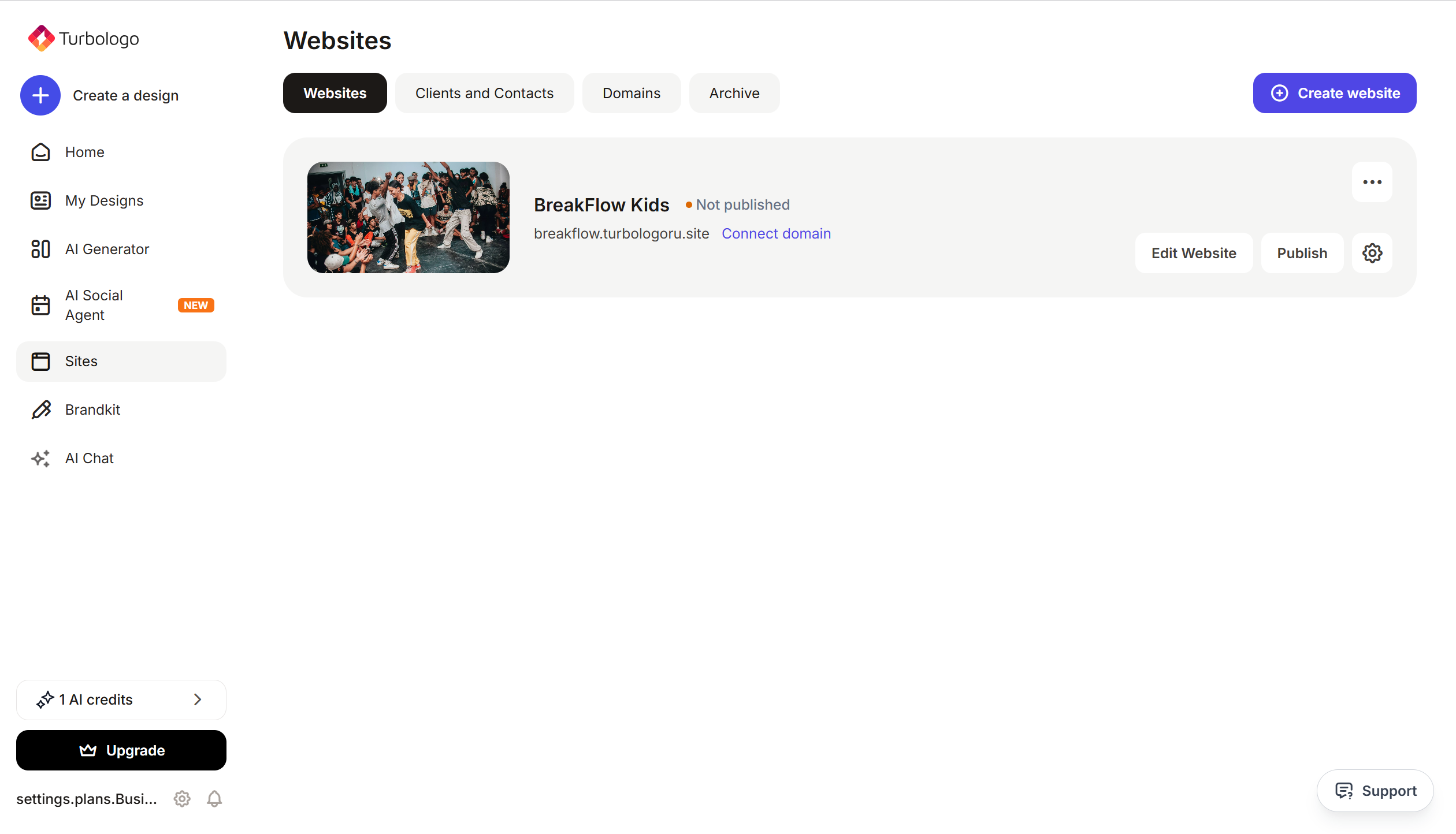
Open your website in Turbosite.
-
Go to Site settings → Integrations → HTML code in
<head>(this is the service part of the page — visitors do not see it, but scripts from there are loaded when the site is opened).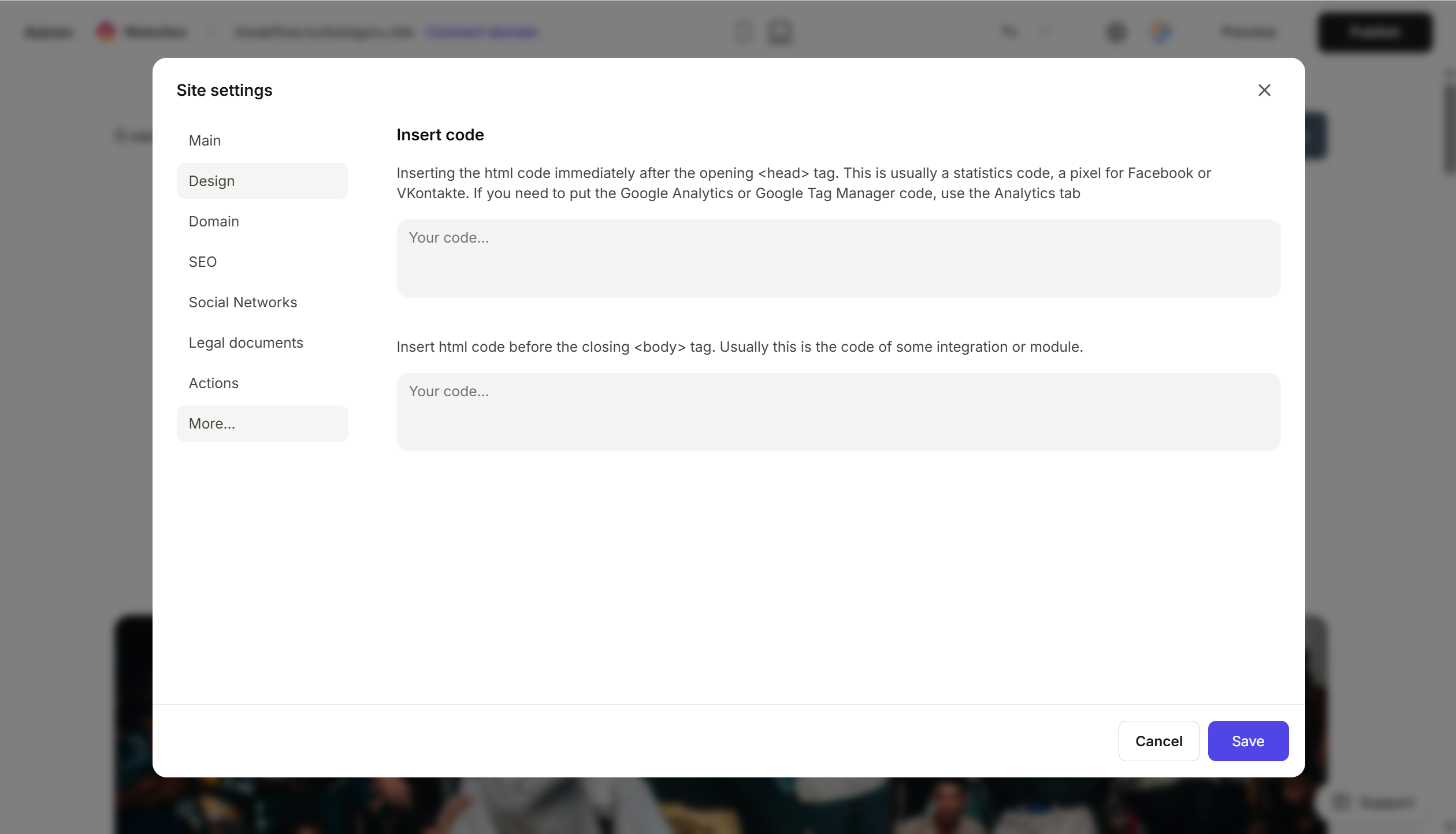
- Paste the Iubenda code at the very beginning of the HTML code field, before all others.
- Save and publish.
Step 4. Add a link to the privacy policy
Iubenda also generates HTML buttons for links to the policy and terms and conditions. It is recommended to add these to the website footer.
- In Iubenda → your document section → Embed code → select the button type (text link, badge, button).
- Copy the code.
- In Turbosite, add an HTML block to the page footer and paste the code.
Step 5. Verify that everything works
- Open the published site in incognito mode.
- The consent banner should appear at the bottom or side.
- Check the banner buttons and the policy link in the footer.
- Click the link — the policy page on iubenda.com should open.
FAQ
How much does it cost? Free — a simple policy without many services. Pro — $4.99/month per document or $36/year for an extended set. Full package (policy, terms and conditions, cookie banner, consent registry) — $97/year. Pricing.
How is Iubenda different from Cookiebot/CookieYes? Iubenda is not just a banner, but also generates legal texts with regular automatic updates. Cookiebot/CookieYes are stronger in managing the actual cookie consent.
Is the Russian 152-FZ supported? Yes. Iubenda is one of the few international services that can generate a policy according to 152-FZ.
Can I host the policy on my own site instead of iubenda.com?
Yes, there is an API and text embedding via <iframe>. Available on paid plans. However, hosting on iubenda.com provides automatic updates when legislation changes.
The banner does not appear. Check that the script is inserted at the very beginning, the site is published, and there are no ad blockers. There should be no loading errors from the iubenda.com domain in the browser console.
Where to look next
- Iubenda Help Center — official documentation
- Cookie Solution implementation — detailed information about the cookie banner
- Pricing — current prices






