
How to connect SimplyBook.me to a Turbosite website
SimplyBook.me is an international online booking service for beauty salons, sports clubs, medical and educational services. It supports reminders, payments, and group classes. There is a free plan (up to 50 bookings per month), and paid plans start from $9.9/month. Installation takes 10–15 minutes.
What you will need
- A SimplyBook.me account — register at simplybook.me (free plan available)
- A published Turbosite website
- 10–15 minutes
Step 1. Set up services and staff in SimplyBook.me
- Register at simplybook.me and select your niche during setup.
- In the admin panel, go to Manage → Services and add your services (name, duration, price).
- In Manage → Service providers, add staff members and link them to services.
- In Settings → Working hours, set your working schedule.
📷 Screenshot: Manage → Services panel with added services.
Step 2. Get the widget code for your website
- In the admin panel, go to Custom Features → Booking Website (or Plugins → Website widget).
- Enable the Widget Plugin if it is not already enabled.
- Open the widget settings: choose the type (inline, popup, floating button), color, and size.
- Click “Get the code” or “Copy code”.
- Copy the generated HTML/JavaScript code.
📷 Screenshot: Widget settings with the embed code.
⚠️ Check for updates: The SimplyBook.me interface is updated regularly. If sections are named differently, look for “Widget”, “Embed”, or “Code for website”.
Step 3. Insert the code into Turbosite
For an inline widget (form as part of the page):
- Open your website in Turbosite.
- Add an “HTML code” block to the desired place on the page (usually a “Book now” section).
- Paste the SimplyBook.me code.
- Save and publish.
For a floating button or popup:
-
Open your website in Turbosite.
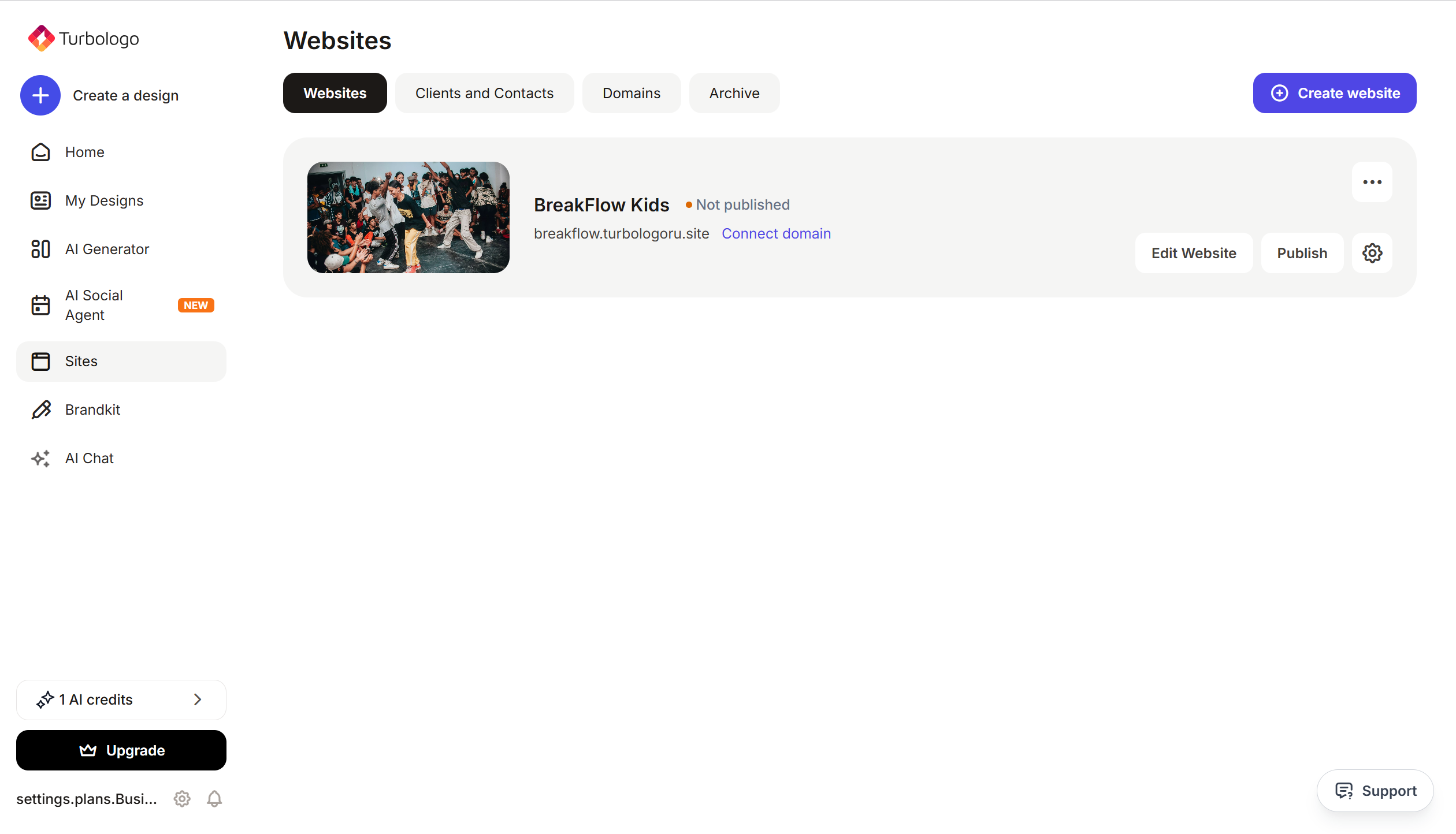
-
Go to Site Settings → Integrations → HTML code in
<head>(this is the service part of the page — visitors do not see it, but scripts are loaded from there when the site opens).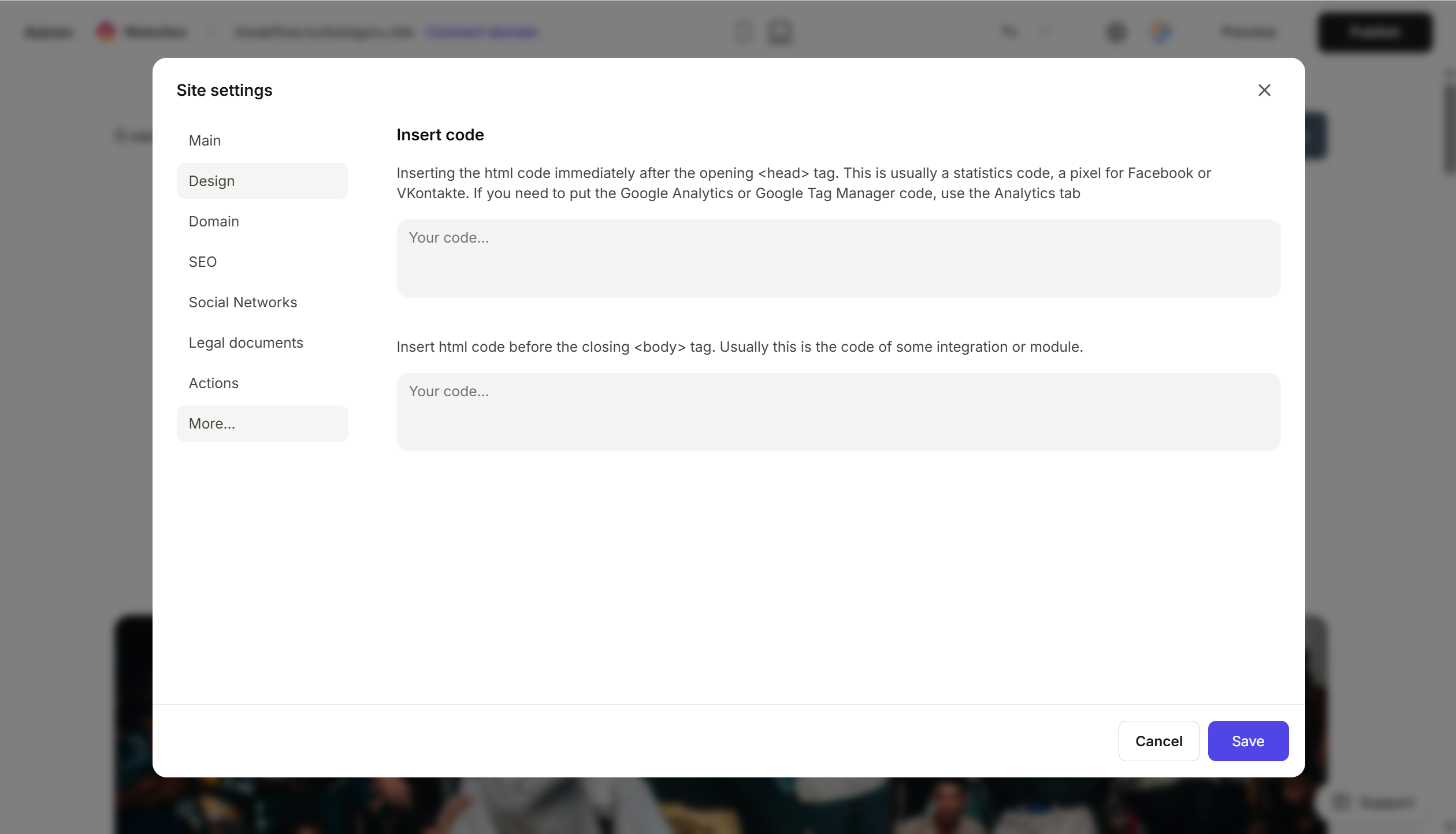
- Paste the SimplyBook.me code.
- Save and publish.
Step 4. Verify that booking works
- Open your published website.
- Find the widget or click the booking button.
- Complete a test booking: select a service, a provider, and a time.
- Open the SimplyBook.me admin panel → Bookings — the booking should appear there.
- You should receive a confirmation email.
FAQ
How much does it cost? Free — up to 50 bookings/month, 1 custom feature. Basic — $9.9/month (100 bookings). Standard — $29.9/month (500 bookings). Premium — $59.9/month (2000 bookings). Pricing.
What payment methods are supported? Stripe, PayPal, Square, Worldpay, and dozens of others — configured via Custom Features → Accept Payments.
Can I remove the SimplyBook.me branding? On paid plans — yes, via Custom Features. On the free plan, there will be a “Powered by SimplyBook.me” label at the bottom of the widget.
The widget does not open on the site. Check that the code is complete, the site is published, and there are no ad blockers. Also, ensure that services and staff are set up in SimplyBook.me — without this, the widget will show an empty window.
Can I set up client reminders? Yes, via email for free, and via SMS on paid plans. Configured in Settings → Notifications.
Where to look next
- SimplyBook.me Help Center — official documentation
- Embed booking widget — step-by-step guide
- Pricing — current prices






