
How to connect Cal.com to a Turbosite website
Cal.com is an open-source alternative to Calendly. The free plan is much more generous: no branding, unlimited meetings, and basic integrations. Paid plans are for teams and advanced features. Installation takes 5–10 minutes.
What you will need
- A Cal.com account — register at cal.com (free plan available)
- A published Turbosite website
- 5–10 minutes
Step 1. Create an event type in Cal.com
- Register at cal.com and connect your calendar (Google, Outlook, Apple).
- On the main page, click ”+ New” → “Event Type”.
- Configure:
- Name, duration.
- Available slots (e.g., weekdays 10:00–18:00).
- Location: Zoom, Google Meet, Cal Video, or your own.
- Description and client intake form.
- Save.
📷 Screenshot: configuring an event type in Cal.com.
Step 2. Get the embed code
- On the event type page, click the “Embed” button.
- Choose an option:
- Inline Embed — embedded calendar.
- Floating Pop-up Button — floating button.
- Pop-up via element click — popup on element click.
- Copy the generated code.
📷 Screenshot: Embed window with three options and code.
Step 3. Insert the code into Turbosite
For Inline Embed:
- Open your website in Turbosite.
- Add an “HTML code” block to the desired place on the page.
- Paste the Cal.com code.
- Save and publish.
For Floating Button and Pop-up:
-
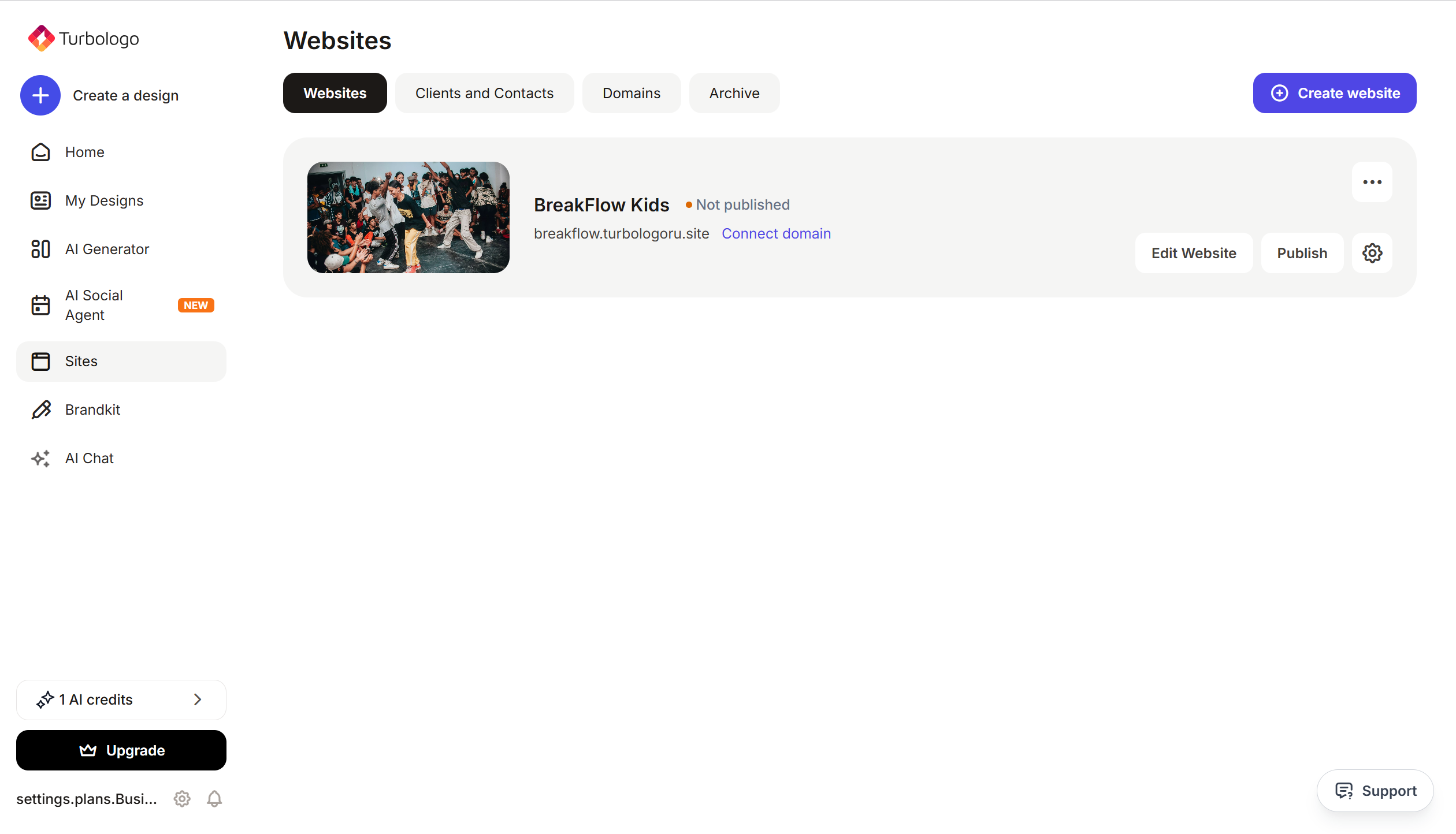
Open your website in Turbosite.
-
Go to Site Settings → Integrations → HTML code in
<head>(this is a service section of the page — visitors do not see it, but scripts from there are loaded when the site opens).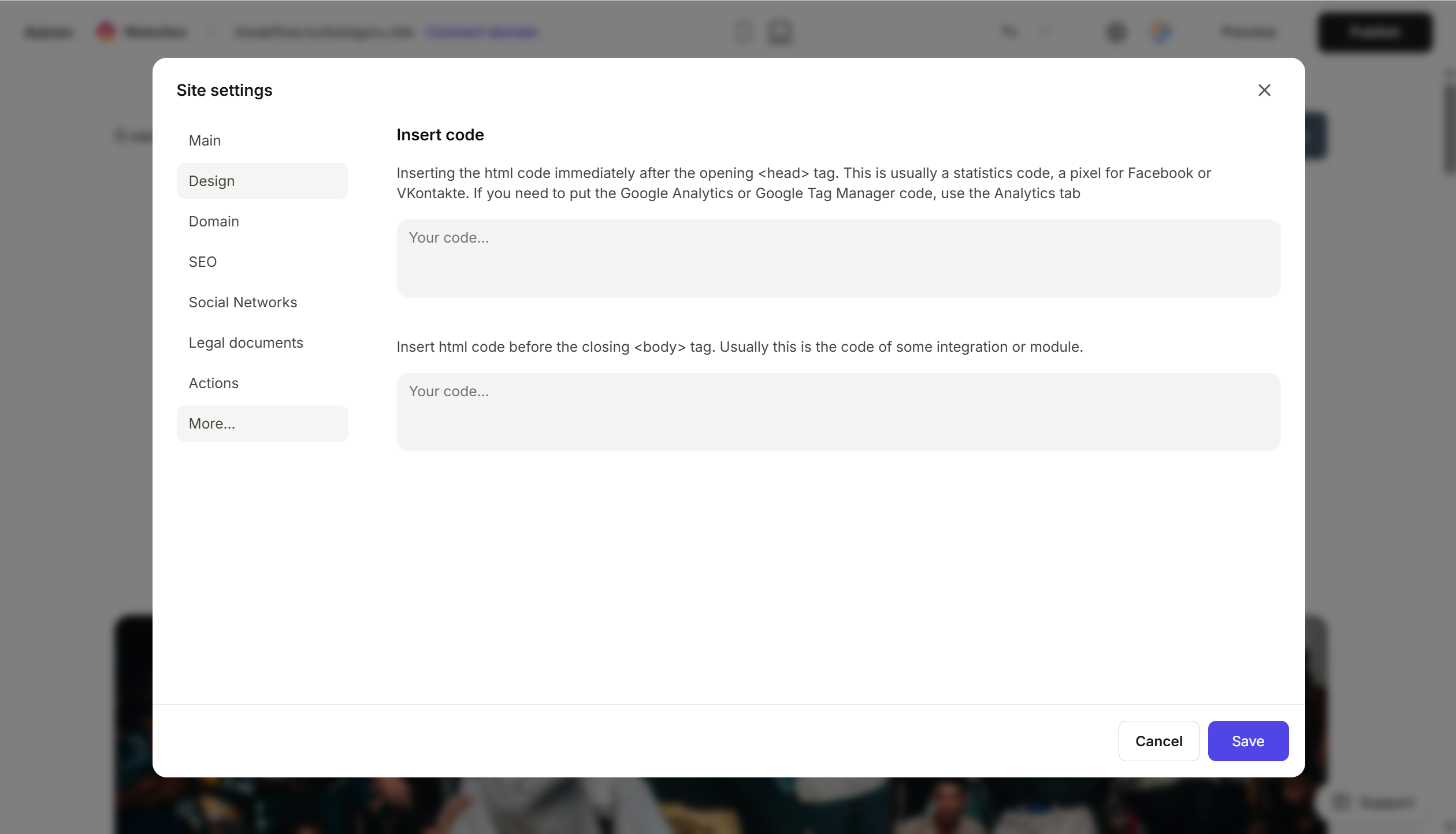
- Paste the Cal.com code.
- Save and publish.
Step 4. Verify that booking works
- Open your published website.
- Find the calendar or click the button.
- Select a slot and book a test meeting.
- Check your calendar — the meeting should appear.
- You should receive a confirmation via email.
FAQ
How is Cal.com different from Calendly? Cal.com is open-source, and the free plan has no branding. Calendly is older and better known to corporate clients. In terms of functionality, they are very similar.
How much does it cost? The free plan is for individual use. Teams is $15/mo/user. Organization is $37/mo/user. Pricing.
Can I accept payments for meetings? Yes, via Stripe integration. The client pays when booking.
Can Cal.com be self-hosted? Yes, this is its main feature as an open-source project. You can deploy it on your own server and not depend on the cloud.
The calendar is not displaying. Check the completeness of the code, publication status, and ad blockers. For Inline, check the placement of the HTML block.
Where to look next
- Cal.com Docs — official documentation
- Embedding Cal.com — embedding
- GitHub repository — open-source code
- Pricing — feature description






