
How to connect Calendly to a Turbosite website
Calendly is the global standard for online meeting scheduling for B2B consultations, demos, and coaching. Clients choose a convenient time from your schedule themselves—no back-and-forth emails required. There is a free plan (1 meeting type), and paid plans start from $10/month. It supports embedding into a website in several ways. Installation takes 5–10 minutes.
What you will need
- A Calendly account — register at calendly.com (free plan available)
- A published Turbosite website
- 5–10 minutes
Step 1. Create a meeting type in Calendly
- Register at calendly.com and connect your calendar (Google, Outlook, Office 365, or iCloud).
- On the home page, click ”+ Create” → “Event Type”.
- Configure the meeting:
- Name, duration (15/30/60 minutes or custom).
- Description, location (Zoom, Google Meet, phone, in-person).
- Available slots per week.
- Save.
📷 Screenshot: configuring a meeting type in Calendly.
Step 2. Get the embed code
- On your meeting type page, click “Share” → “Add to website”.
- Choose an embed method:
- Inline Embed — the calendar as part of the page.
- Popup Widget — opens when clicking a floating button.
- Popup Text — opens when clicking a text link.
- Copy the generated HTML/JavaScript code.
📷 Screenshot: Add to website window with type selection and code.
Step 3. Insert the code into Turbosite
For Inline Embed:
- Open your website in Turbosite.
- Add an “HTML code” block to the desired place on the page.
- Paste the Calendly code.
- Save and publish.
For Popup Widget / Popup Text:
-
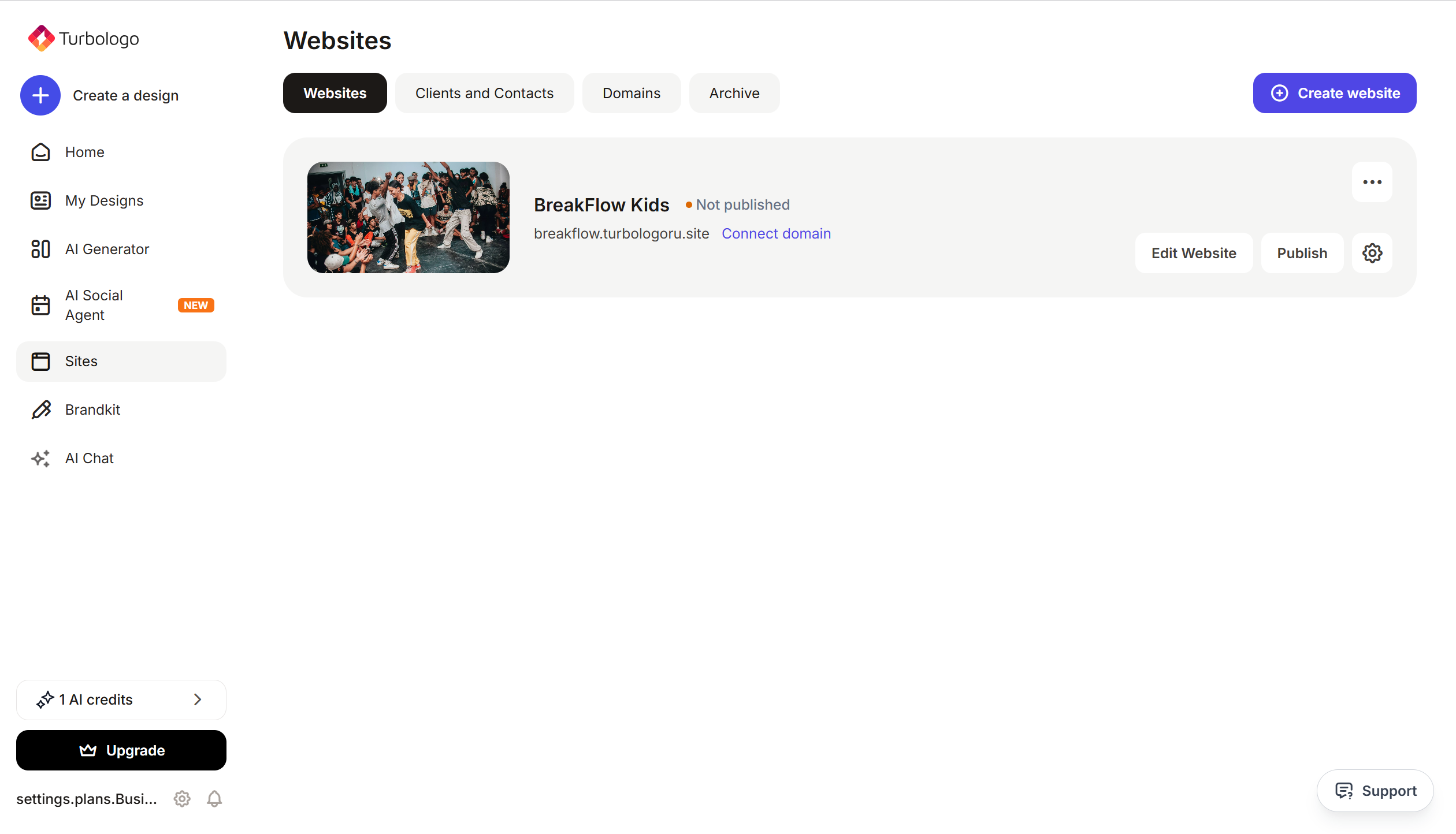
Open your website in Turbosite.
-
Go to Site Settings → Integrations → HTML code in
<head>(this is a service part of the page—visitors do not see it, but scripts are loaded from there when the site is opened).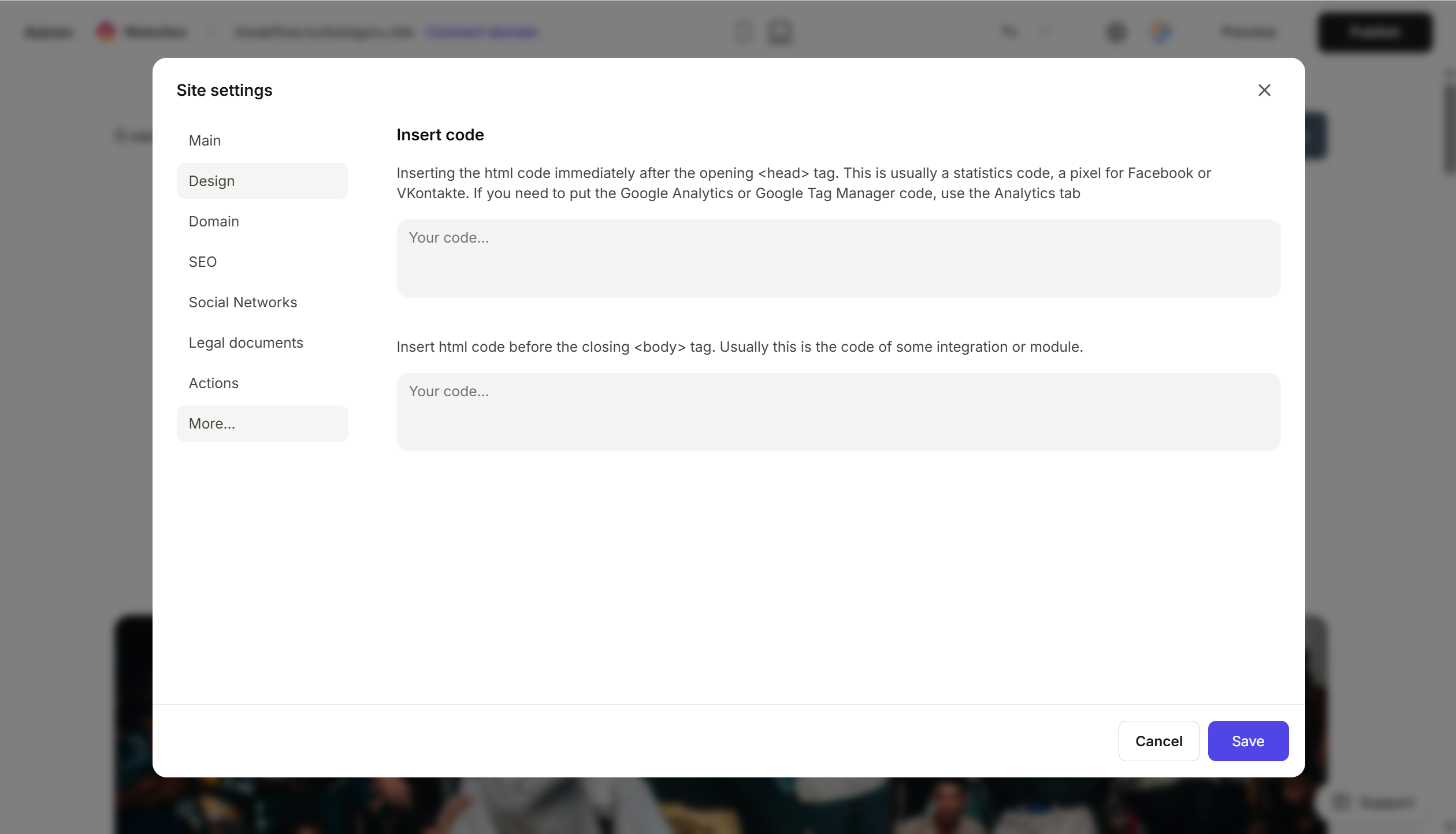
- Paste the Calendly code.
- Save and publish.
Step 4. Verify that scheduling works
- Open your published website.
- Find the embedded calendar or click the Popup button.
- Select a slot, fill out the form, and confirm.
- Check that the meeting has appeared in your calendar (Google/Outlook) and in Calendly → “Scheduled Events”.
- A confirmation should be sent to the specified email address.
FAQ
How much does it cost? Free — 1 meeting type, 1 calendar. Standard ($10/month) — multiple meeting types, customization. Teams ($16/month/user) — for teams. Pricing.
Can I remove Calendly branding? On paid plans — yes. On the free plan, “Powered by Calendly” is visible at the bottom.
Does Calendly integrate with Zoom/Google Meet? Yes, when creating a meeting type, you can choose to automatically create a link for Zoom, Google Meet, or Microsoft Teams.
Can I accept payments for meetings? Yes, on paid plans via integration with Stripe or PayPal. The client pays for the meeting when booking.
The calendar is not displaying on the site. Check the completeness of the code, site publication, and absence of ad blockers. For Inline, check that the HTML block is on the page. For Popup, there must be a trigger button.
Where to look next
- Help Center Calendly — official documentation
- How to embed Calendly — step-by-step guide
- Pricing — current prices






