Good Nano Banana prompts describe the whole picture: what it is, what’s in the frame, the background, the light, the style and the exact wording. Nano Banana is Google’s family of AI image models, and it follows detailed descriptions far better than a handful of keywords. You can use it in the Gemini app, in Google AI Studio or inside other tools, such as Nano Banana on Turbologo, where Nano Banana 2 and Nano Banana Pro sit in one generator with your logo and brand colors.
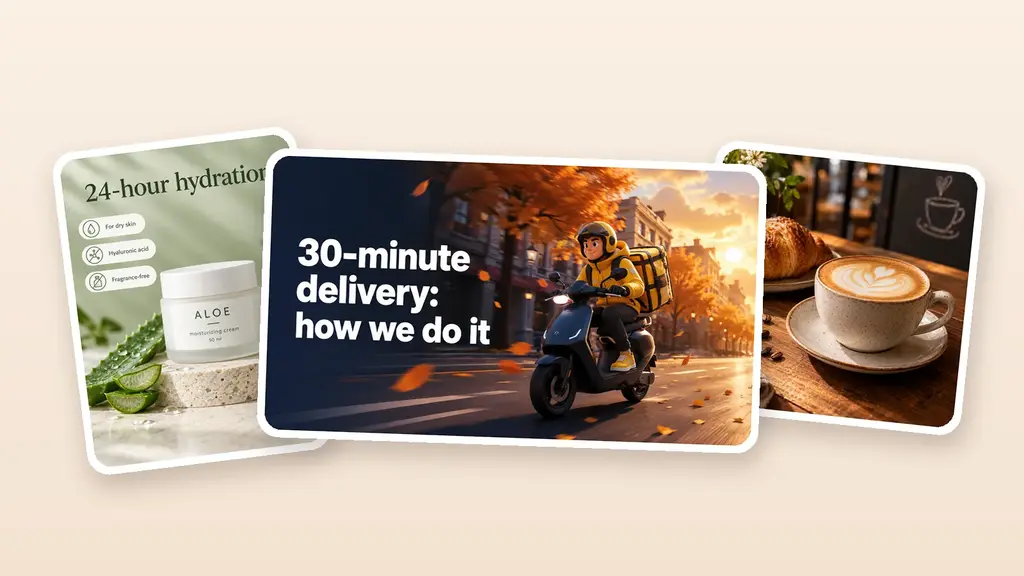
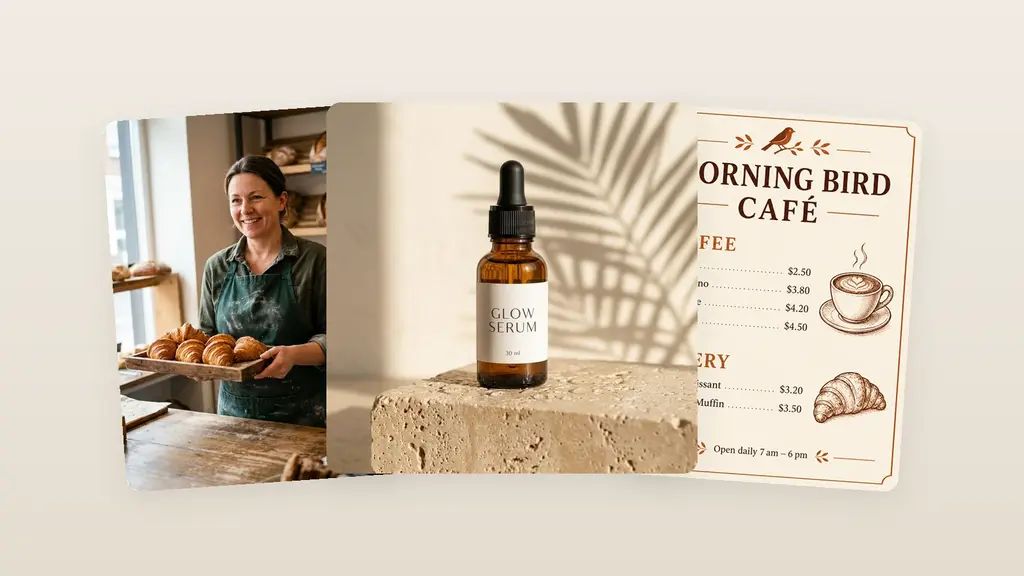
Below: what the models are, how to use them, a simple prompt formula, and 25 ready-to-use prompts for posts, banners, product shots and photo edits. We ran six of them through Nano Banana and show the results as they came out, mistakes included.
What is Nano Banana: Nano Banana 2 vs Pro
“Nano Banana” started as a codename and became the brand for Google’s Gemini image models. There are four of them now:
| Model | Official name | Released | Best for |
|---|---|---|---|
| Nano Banana | Gemini 2.5 Flash Image | August 2025 | the original, now a legacy model |
| Nano Banana Pro | Gemini 3 Pro Image | November 20, 2025 | complex scenes and fine detail |
| Nano Banana 2 | Gemini 3.1 Flash Image | February 26, 2026; version 2.1 on October 6, 2026 | everyday work: faster and cheaper than Pro |
| Nano Banana 2 Lite | Gemini 3.1 Flash Lite Image | June 30, 2026 | the fastest and cheapest, weaker with several references and multi-step edits |
Dates come from Google’s blog and docs. For business designs, the two that matter are Nano Banana 2 and Pro. Both put text on images, change backgrounds and details in your photos, and combine several reference images into one scene. According to Google, version 2.1 follows prompts more closely and renders text better. Every image they make carries Google’s invisible SynthID watermark.
How to use Nano Banana
In the Gemini app. Go to gemini.google.com and sign in. Open the sidebar, select Images, then pick a template or type your prompt. To edit a picture, open your Library, select an image or upload one, choose Chat under it and describe the change. The app uses Nano Banana 2. If you have a Google AI plan, you can open the More menu under an image and choose Redo with Pro.
In Google AI Studio. At aistudio.google.com you pick the model yourself, Nano Banana 2.1 or Pro included. It’s built for developers: images made through the Gemini API are paid per image.
On Turbologo. Nano Banana is built into the AI design generator, so you don’t need a Google account:
- Open the generator from the Nano Banana page and log in or sign up.
- Pick Nano Banana 2.1 or Nano Banana Pro in the model list. 2.1 uses fewer credits and suits posts and banners, Pro is for detailed scenes.
- Describe the task and write the exact wording after a colon.
- Attach your logo and references: up to 10 images per request, logo included. Turn on Brand Kit to add your colors, fonts and contacts.
- Pick one of 10 aspect ratios (1:1, 4:5, 5:4, 3:4, 4:3, 2:3, 3:2, 9:16, 16:9, 21:9) and 1K, 2K or 4K quality. Choose 2K or 4K for print.
- Edit in plain words, such as “change the headline” or “make the background dark”, then download.
Two honest caveats. Each image and each edit uses credits, and the result is a finished image you edit with words, not by dragging elements. The generator also adds its own instructions, your logo and brand style to the prompt, so its result will differ from the raw model. Most examples below come straight from the Nano Banana models at 1K, with no retouching; where an image was made through Turbologo’s generator, the caption says so.
Nano Banana prompting guide
Google’s main advice is simple: describe the scene in rich detail. The more specific you are, the more control you get. Use this formula:
| Part | What to write | Example |
|---|---|---|
| What it is | post, story, banner, product shot | “Promo post for a flower studio” |
| Main subject | what’s in the center | “a bouquet of orange roses in kraft paper” |
| Background | where it happens | “on a dark green background” |
| Light and angle | for photos | “soft morning light from the left, shot slightly from above” |
| Text | exact wording after a colon, and where it goes | “Large headline: Autumn Bouquets” |
| Style, colors, font | mood and palette | “elegant serif font, colors: dark green, cream” |
| Format | in Gemini, say it in words | “vertical 9:16 story” |
A few rules that save attempts:
- Keep text short and say where it goes. Headlines, prices and dates come out most reliably. Write each line after a colon or in quotes, and check the result: the models sometimes draw the quote marks too.
- Name the language of the text. If your prompt mixes languages or you need wording in Spanish, French or any other language, end the prompt with “All text on the image must be in Spanish.” In our tests, Nano Banana Pro given a non-English prompt without this line translated the wording into English or added a line of its own. Turbologo’s generator adds a language instruction automatically.
- Check every letter. Even a correct headline can come with an extra line the model invented. Fix it with a follow-up edit: “remove the line under the logo”.
- For photo edits, say what changes and what stays. Google recommends stating that everything else stays the same.
- Label your references. With several images, say what to take from each: “the product from the first photo, the style from the second”. Google’s docs allow up to 14 reference images. On Turbologo, it’s up to 10, logo included.
- Refine in the same chat. Google calls multi-turn editing the recommended way to iterate, because the model remembers what it has already done.
Nano Banana JSON prompts
Some people write Nano Banana prompts as JSON. That’s a community habit: Google’s own examples are plain sentences. JSON is handy as a reusable template, but it isn’t required.
{
  "type": "promo post, 4:5",
  "subject": "bouquet of orange roses in kraft paper",
  "background": "dark green, studio light",
  "text": {
    "headline": "Autumn Bouquets",
    "subline": "15% off until Oct 31"
  },
  "style": "elegant serif headline, cream text",
  "language": "All text in English"
}
For a longer walkthrough with weak and strong prompt pairs, see our guide on how to generate images with AI.
25 Nano Banana prompts for business designs
Swap the names, prices and addresses for your own. In Gemini, add the format, such as “square 1:1”; on Turbologo you pick it separately. The prompts with example images keep quote marks around the wording, because that’s how we ran them.
Social media posts and stories
1. Promo post with a discount
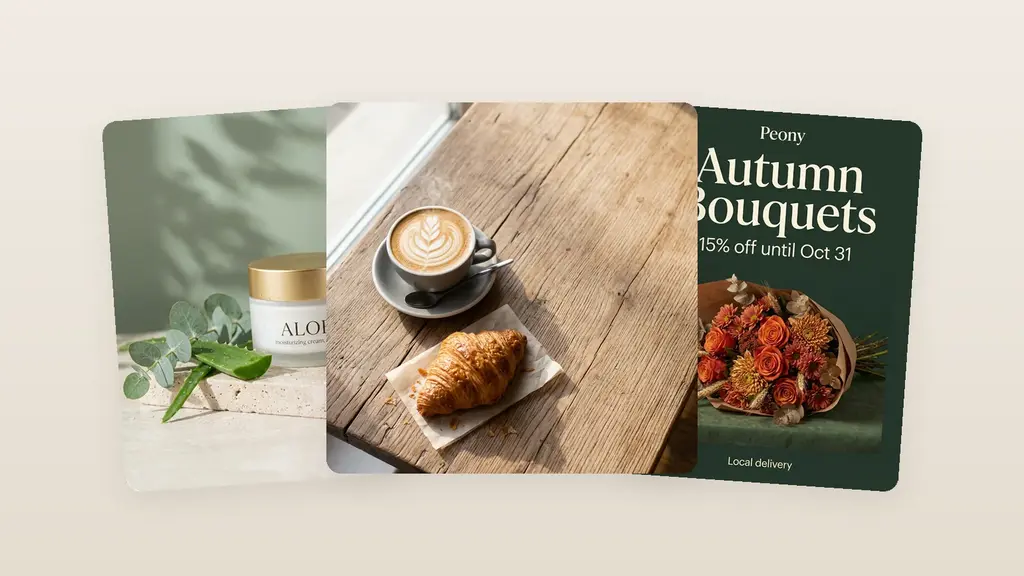
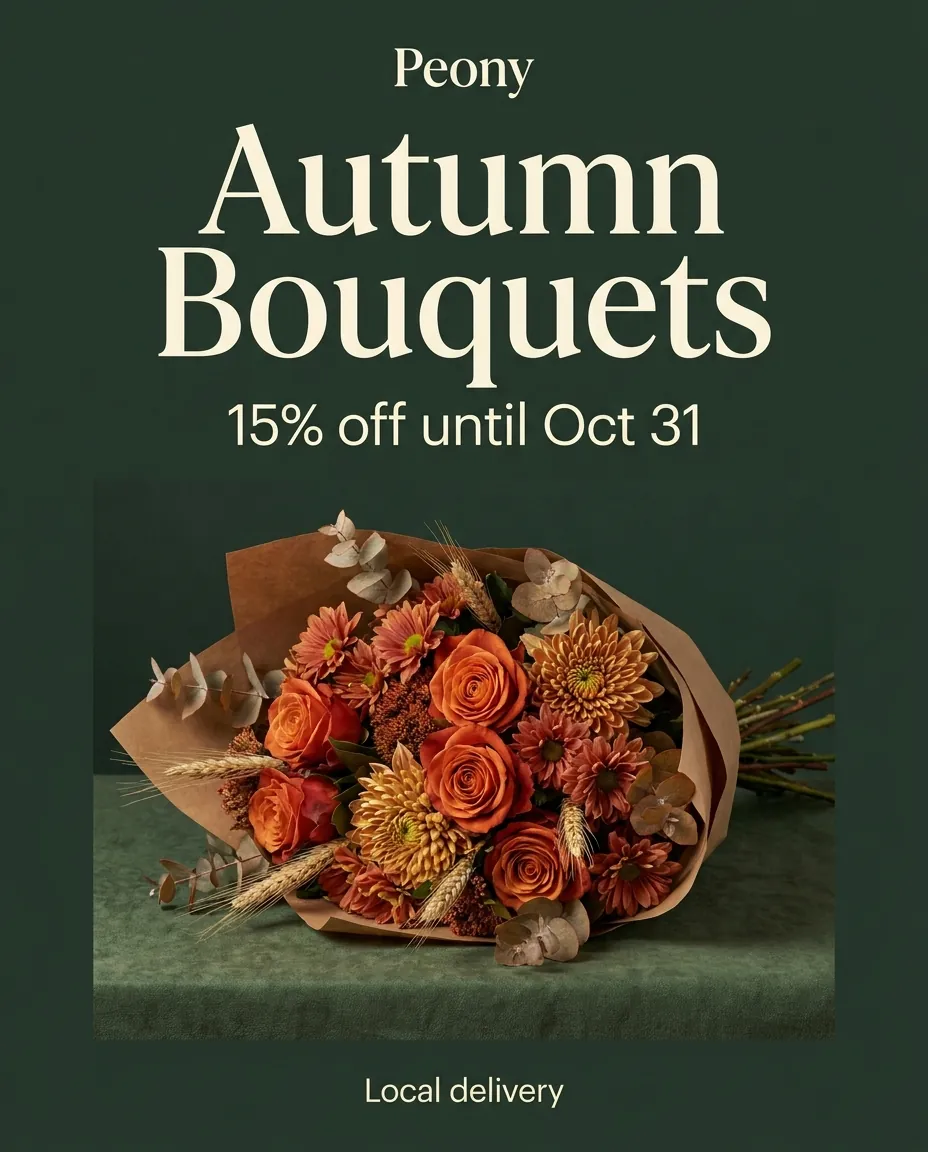
Promo post for “Peony” flower studio. Large headline: “Autumn Bouquets”. Below it: “15% off until Oct 31”. Small line at the bottom: “Local delivery”. In the center, a bouquet of orange roses, chrysanthemums and dried flowers wrapped in kraft paper on a dark green background. Headline in an elegant serif font, the rest in a simple sans-serif. Colors: dark green, cream, terracotta.
2. Story with opening hours
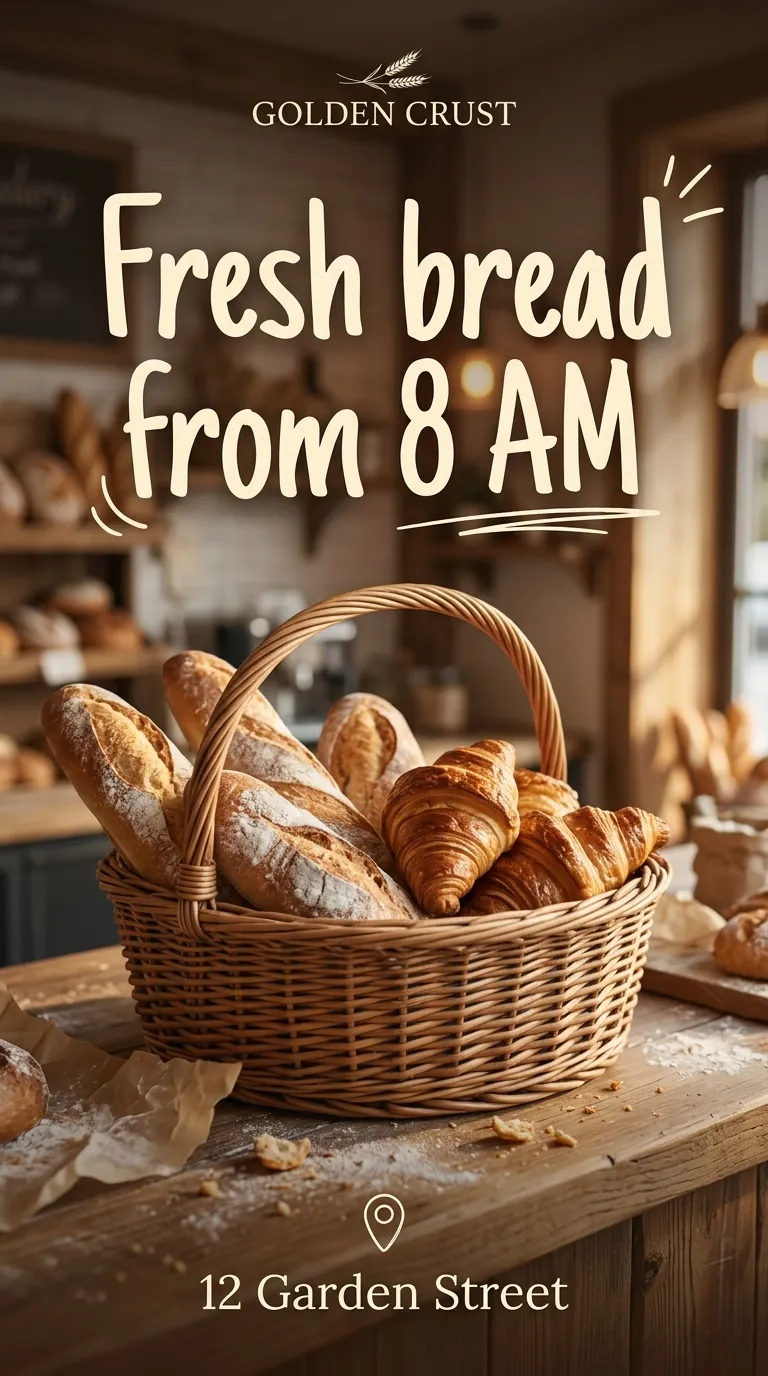
Instagram story for “Golden Crust” bakery. At the top, large handwritten font: “Fresh bread from 8 AM”. At the bottom: “12 Garden Street”. In the background, a wicker basket of baguettes and croissants on a wooden counter, warm light, cozy atmosphere. Light-colored text that stays easy to read over the background.
3. Grand opening post
Post for “Polish” nail studio. Headline: We’re open! Line below: 20% off your first visit through Nov 30. Soft pink and beige background, nail polish bottles and dried flowers, lots of empty space. Thin serif font for the headline.
4. New product with a price
Square post for “Leaf & Kettle” tea shop. Headline: New: Sea Buckthorn Tea. Large price below: $12 per 3.5 oz. A glass teapot with bright orange tea, sea buckthorn berries and a cup on a wooden table, warm light.
5. Carousel cover with tips
Cover slide of an Instagram carousel for a skincare studio. Large headline: 5 Winter Skincare Mistakes. Small arrow at the bottom with the word: Swipe. Minimal style, light blue background, cream jars and a few snowflakes.
6. Sale banner
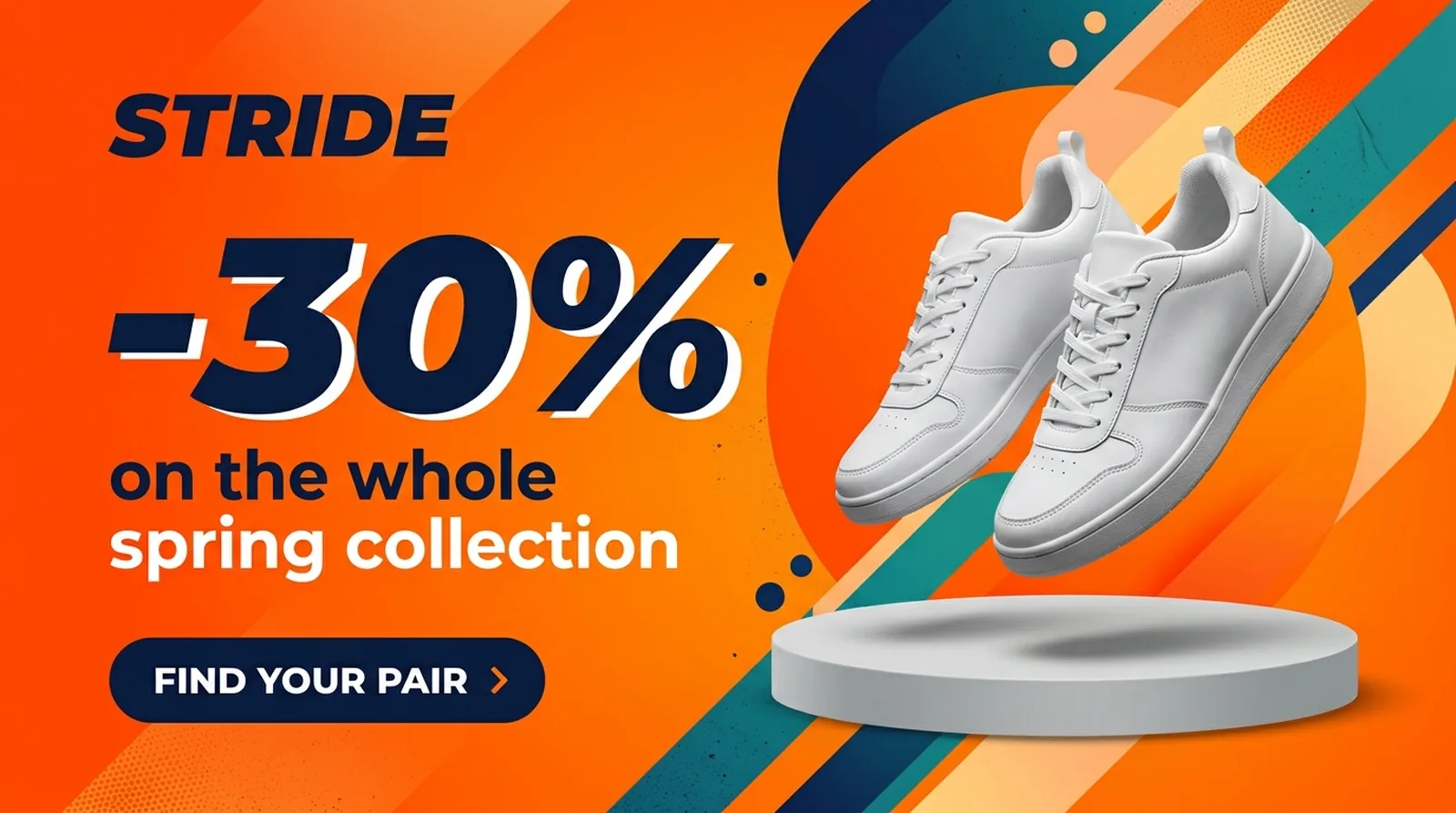
Sale banner for a sneaker store called “STRIDE”. Large on the left: “−30%”, below it “on the whole spring collection”, and a button “Find your pair”. On the right, white sneakers with no logos hang mid-jump above a round podium. Bright orange background with a soft gradient and large geometric shapes, a soft shadow under the sneakers. Modern, dynamic style. No brand logos.
7. Black Friday banner
Web banner, 16:9, for an electronics store. Headline: Black Friday. Large: Up to 50% off. Button that says: Shop the deals. Dark background with orange neon accents, headphones and a smartphone without logos.
8. Loyalty offer
Banner for “Shine” car wash. Headline: Your 3rd wash is free. Line below: Offer ends Dec 31. A clean car covered in white foam and water drops, blue and white colors, dynamic style. No car brand logos.
9. Workshop poster
Poster, 3:4, for “Clay Room” pottery studio. Headline: Make Your Own Mug in 2 Hours. Two lines below: Saturday, Nov 23, 3 PM and 5 Oak Street. Hands covered in clay at a pottery wheel, warm earthy colors, soft light.
10. Hiring post
Square image for a hiring post. Headline: We’re Hiring Baristas. Line below: Flexible hours, training provided. A cozy coffee shop with an espresso machine in the background, warm tones, friendly style.
Product shots
11. Product on a podium
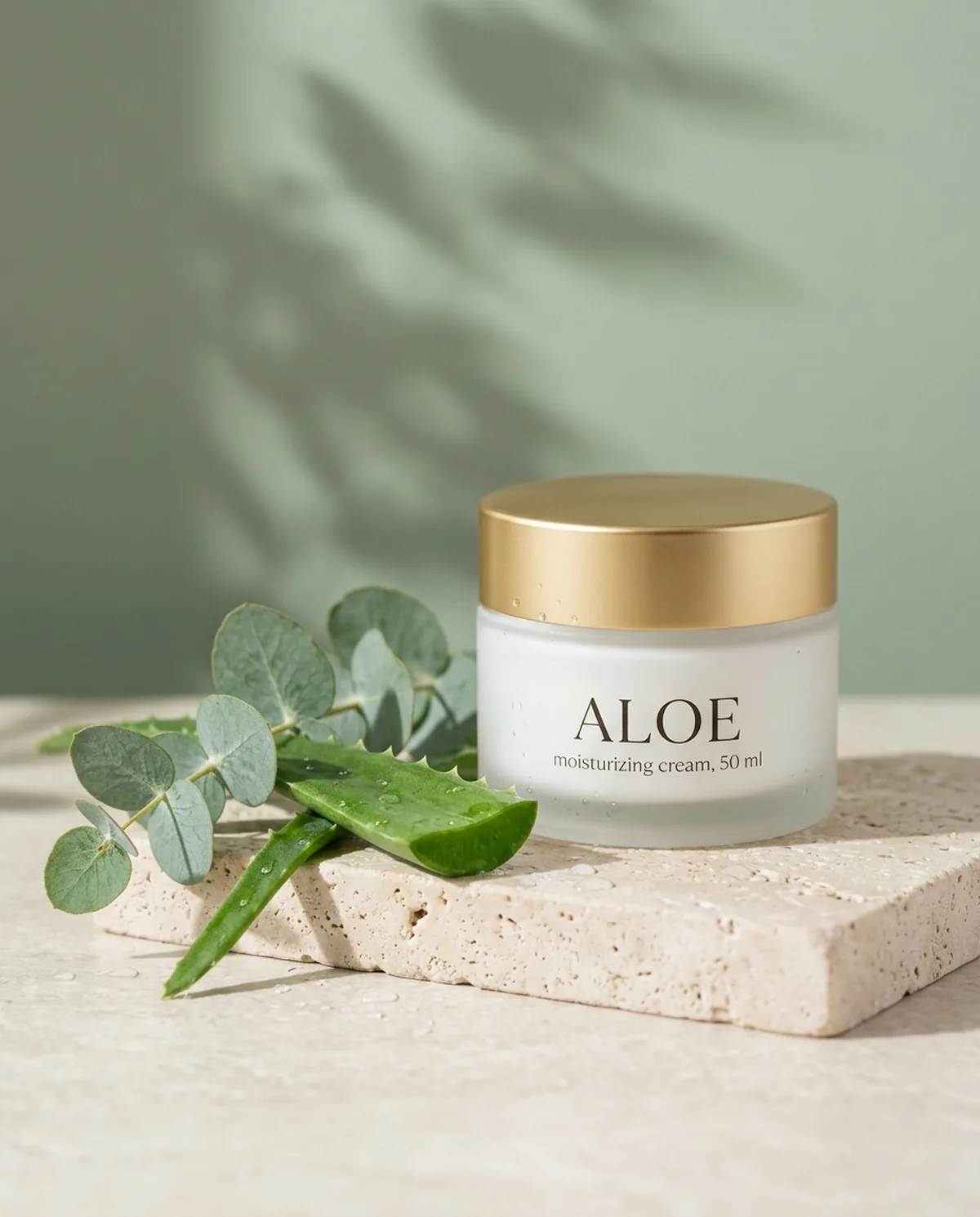
Product photo for a store listing: a jar of moisturizing cream in matte white glass with a gold lid and a neat label reading “ALOE” and below it “moisturizing cream, 50 ml”. The jar stands on a light travertine podium next to a fresh aloe leaf, a eucalyptus sprig and water drops. Soft sage-green background with gentle leaf shadows from morning sun on the wall. Shot slightly from above, 85 mm lens, softly blurred background. Realistic, like a premium skincare catalog.
12. Product on white
Product image on a clean white background: a handmade teal ceramic mug, a soft shadow under it, studio lighting, front view from slightly above. No text.
13. Product in a room
A scented candle in a glass tumbler on a nightstand in a cozy bedroom. Evening, warm string-light glow, a throw blanket and a book nearby. The candle in sharp focus, background blurred.
14. Your product, new setting
Take the product from the attached photo and place it on a light marble kitchen counter by a window, morning light. Keep the product’s shape, color and label exactly the same.
15. Flat lay
Top-down flat lay for a craft supply shop: pastel yarn balls, knitting needles, scissors and a notebook on light linen. Even, soft light, empty space around the edges.
These are realistic images in a photographic style: they look like photos, but the AI made them.
16. Coffee for the feed
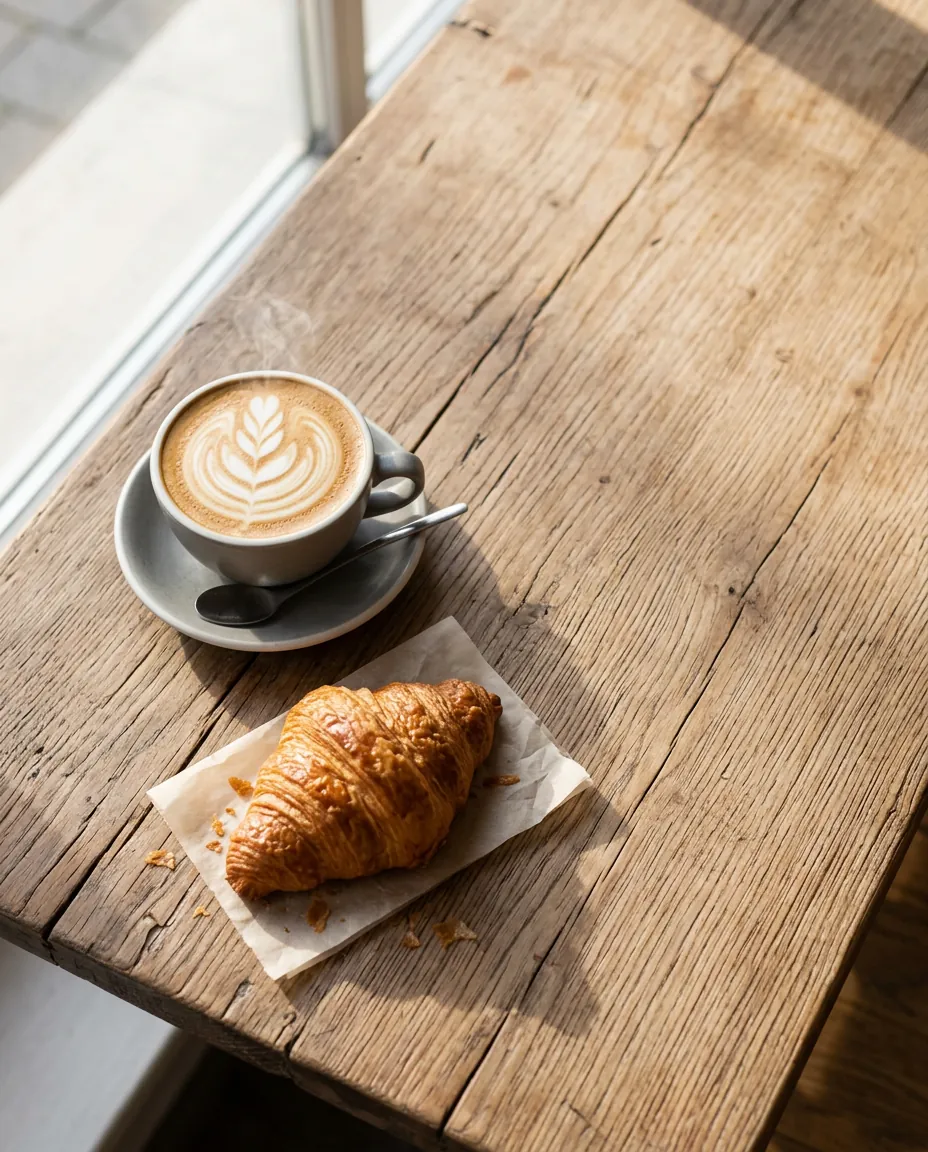
Social media photo for a coffee shop: a cappuccino with latte art in a gray ceramic cup and a croissant on a wooden table by a window. Morning sun, warm tones, light steam over the cup. Top-down view, plenty of empty space on the right for text. Realistic shot, natural colors, no text.
17. Dish for a menu
Close-up of a bowl of ramen on a dark table: egg, green onion, steam rising from the broth, chopsticks on the side. Soft side light, dark moody tones, like a Japanese restaurant menu.
18. Interior with no people
Interior of a small barbershop: a leather chair, a mirror in a black frame, shelves with jars, warm evening light. No people in the frame.
19. Hands at work
A florist’s hands arranging a bouquet of peonies on a wooden table, scissors and ribbon nearby. Daylight from a window, top-down view.
20. Professional headshot from your photo
Use the attached photo. Create a professional headshot of this person: navy blazer, light gray background, soft studio lighting, looking at the camera, slight smile. Keep the facial features unchanged.
Only upload your own photos or photos of people who agree: deepfakes are against the terms of service. A likeness isn’t guaranteed. On Turbologo, add the word “photoshoot” to the prompt, or the photo is treated as a style reference.
Photo edits
21. New background and color
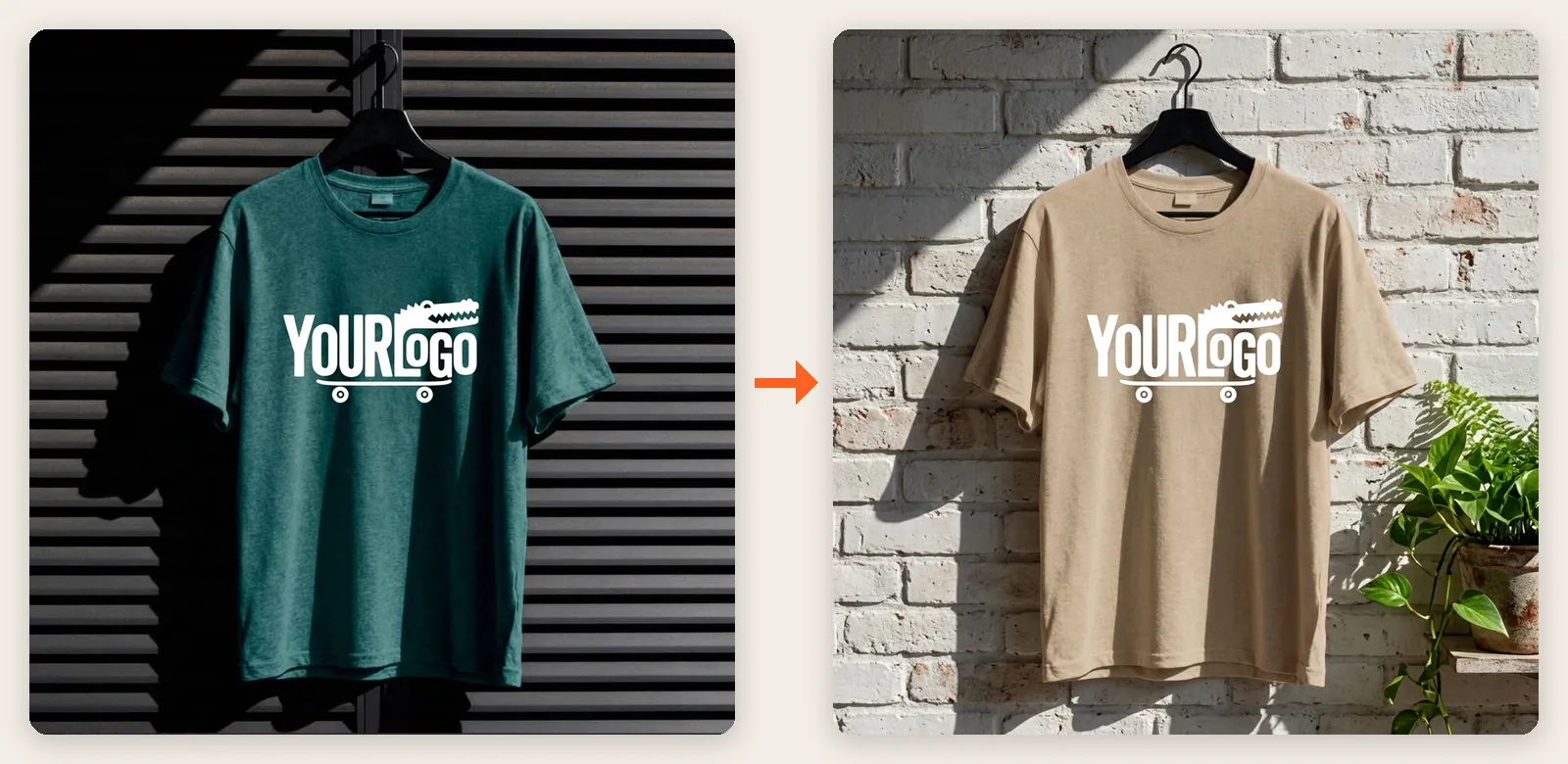
Replace the background: instead of the dark shutters, a light white brick wall with a green potted plant on the right. Recolor the T-shirt sandy beige. Keep the print, the hanger, the angle and the lighting unchanged.
22. Remove clutter
Remove the cables and the plastic bag in the background. Keep everything else as it is.
23. Golden hour
Make it look like the photo was taken at sunset: warm golden light, long shadows. Don’t change the objects or the composition.
24. Translate the text
Translate the text on this banner into Spanish. Keep the font, colors and layout the same.
25. New format
Turn this post into a vertical 9:16 story: extend the background at the top and bottom, keep the text and the product unchanged.
Nano Banana 2 or Pro: which to use
For most business designs, Nano Banana 2 is enough. Pick Pro when the scene is complex or every detail matters.
| Nano Banana 2 (2.1) | Nano Banana Pro | |
|---|---|---|
| How Google positions it | the workhorse: balance of quality, speed and cost | complex tasks where accuracy matters more than speed |
| Good for | posts, stories, banners, quick variations | detailed scenes, complex compositions |
| API price per 1K image (Google, as of October 2026) | $0.0336 | $0.134 |
| In the Gemini app | the default | only with a Google AI plan |
| On Turbologo | fewer credits | more credits |
For more Nano Banana Pro examples next to Nano Banana 2 and GPT Image on the same prompts, see our Nano Banana Pro vs Nano Banana 2 comparison.
Can you use Nano Banana for free?
On Google, with limits. The Gemini app offers Nano Banana 2 without a plan, with a daily limit Google doesn’t publish. Without a plan, downloads are 1K. Nano Banana Pro needs a Google AI plan. When Pro launched in November 2025, Google said images from free and AI Pro users keep a visible Gemini sparkle. The Gemini API has no free tier for the Nano Banana models: as of October 2026, Nano Banana 2.1 costs $0.0336 and Pro $0.134 per 1K image.
On Turbologo, your first generation. In most countries, your first generation is free when you sign up: you get credits for one 1K image on the default model, and Nano Banana 2 uses fewer, so they cover one Nano Banana 2 image too, but not Pro. After that, you pay with AI credits from one-time packs. The calculator on the Nano Banana page shows the price: it opens on Nano Banana 2, switch to Pro to compare.
Nano Banana FAQ
The ones that describe the whole scene: what the image is, the main subject, the background, light, style, colors and the exact wording with its position. Short text lines work best. For edits, say what to change and what to keep.
The Gemini app lets you create Nano Banana 2 images without a plan, within a daily limit. Nano Banana Pro and API access are paid. On Turbologo, your first generation is free when you sign up in most countries.
In the Gemini app, create an image and choose Redo with Pro in the More menu, which needs a Google AI plan. In Google AI Studio, pick Nano Banana Pro as the model. On Turbologo, select Nano Banana Pro in the generator’s model list.
Not necessarily. JSON is a community habit that helps keep a reusable template, while Google’s own examples are plain sentences. What matters is the detail, not the format.
Yes. Attach your photo and describe the shot, for example a navy blazer, a light gray background and soft studio light, and ask to keep your facial features. Likeness isn’t guaranteed, and you should only use your own photos or photos of people who agree.