
How to connect Typeform to a Turbosite website
Typeform is a premium form and survey builder with a focus on design and conversational UX (one field per screen). It is ideal for quizzes, surveys, and applications with high visual requirements. It is a paid service ($25+/month), with a free plan available that has a response limit. Installation takes 5–10 minutes.
What you will need
- A Typeform account — register at typeform.com (free plan available)
- A published Turbosite website
- 5–10 minutes
Step 1. Create a form in Typeform
- Register at typeform.com and log in to your account.
- Click «+ Create a new typeform».
- Choose a template or start from scratch.
- Add questions: short answer, multiple choice, rating, contact details, etc.
- Configure Logic if needed.
- Customize the design in the «Design» tab.
- Save the form.
📷 Screenshot: Typeform editor with configured questions.
Step 2. Get the embed code
- In the top panel, click «Share» → «Embed in a webpage».
- Choose one of the embedding options:
- Standard — the form as part of the page (inline).
- Full page — the form takes up the whole page.
- Popup — opens when a button is clicked.
- Slider — slides in from the side.
- Popover — a mini-window in the corner.
- Configure the parameters (size, position, button text).
- Copy the generated HTML/JavaScript code.
📷 Screenshot: Embed window with embedding type selection and code.
Step 3. Insert the code into Turbosite
For Standard (form as part of the page):
- Open your website in Turbosite.
- Add an “HTML code” block to the desired location on the page.
- Paste the Typeform code.
- Save and publish.
For Popup, Slider, Popover (pop-ups):
-
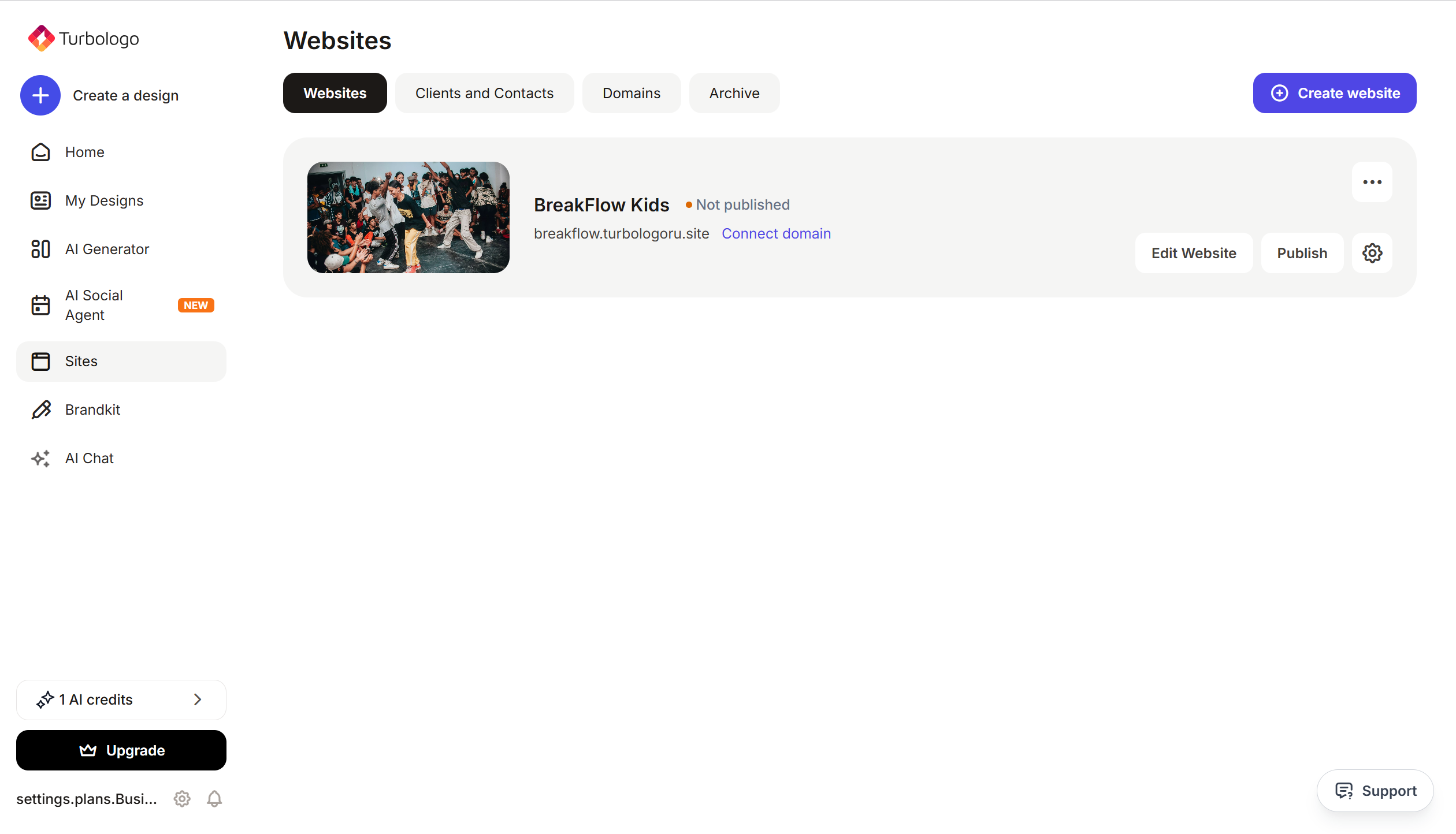
Open your website in Turbosite.
-
Go to Site Settings → Integrations → HTML code in
<head>(this is the service part of the page — visitors do not see it, but scripts are loaded from there when the site is opened).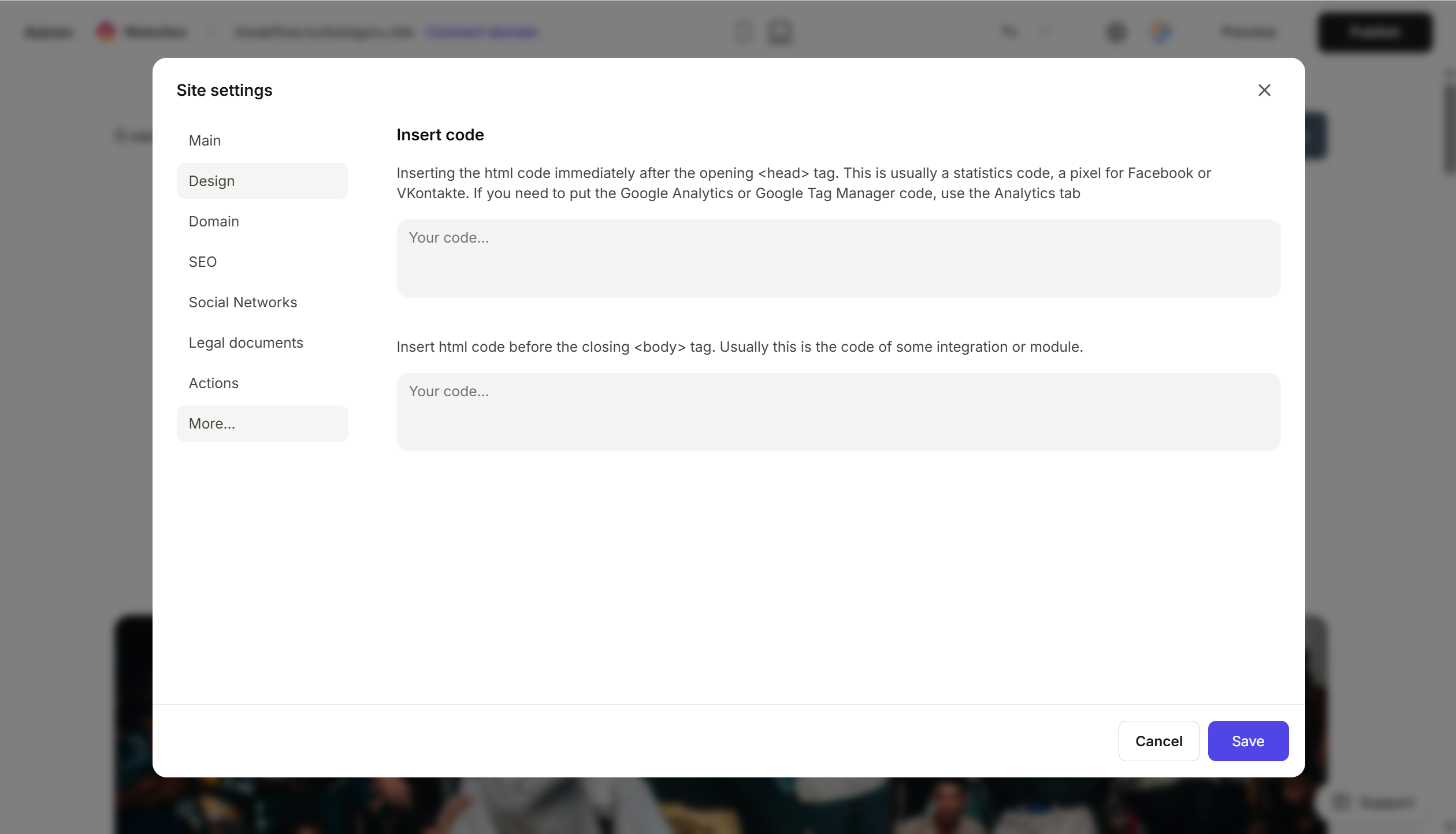
- Paste the Typeform code.
- Save and publish.
Step 4. Verify that the form works
- Open the published website.
- Find the form (or click the button that opens the popup).
- Fill in a few fields and submit a response.
- Open Typeform → «Responses» — your response should appear there.
FAQ
The form is not displaying. Check that the code is complete, the site is published, and there are no ad blockers. If you are using a Popup, there must be a trigger button on the page; without it, the form will not open.
How much does it cost? The free plan includes up to 10 responses per month and 1 form. Paid plans start from $25/month. See details on the pricing page.
Can I connect Typeform to a CRM? Yes, there are built-in integrations with HubSpot, Salesforce, Mailchimp, Zapier, and others. This is configured in Typeform → Connect without editing the site code.
How is Typeform different from Tally or Google Forms? Typeform offers premium design and conversational UX, but is more expensive. Tally is a free alternative with similar UX. Google Forms is simple and free, but looks more basic.
Can I remove the Typeform branding? On paid plans, yes, using the “Remove Typeform branding” option. On the free plan, the text “Powered by Typeform” will appear at the bottom of the form.
What to look at next
- Help Center Typeform — official documentation
- Embed your typeform — step-by-step guide
- Typeform pricing — current prices






