
How to connect Jotform to a Turbosite website
Jotform is a universal form builder with a large set of templates: applications, payments, registrations, surveys, medical forms, and more. It supports payment embedding via Stripe, PayPal, Square, and others. There is a free plan (5 forms, 100 submissions/month), and paid plans start from $34/month. Installation takes 5–10 minutes.
What you will need
- A Jotform account — register at jotform.com (a free plan is available)
- A published website on Turbosite
- 5–10 minutes
Step 1. Create a form in Jotform
- Register at jotform.com and log in to your account.
- Click “Create Form”.
- Choose a method:
- Start from Scratch — a blank form.
- Use Template — from the template library (10,000+).
- Add fields: text, selection, payment, files, signature, etc.
- Customize the design in the “Form Designer” tab.
- In the “Settings” tab, configure notifications (email upon a new submission) and integrations.
- Save the form.
📷 Screenshot: Jotform editor with a configured form.
Step 2. Get the embed code
- In the top panel, click “Publish” → “Embed”.
- Jotform will offer several code options:
- Standard (iframe) — recommended, simple.
- JavaScript — asynchronous loading.
- Lightbox — popup window.
- Feedback Button — button in the corner.
- Copy the appropriate code.
📷 Screenshot: Publish → Embed window with code options.
Step 3. Insert the code into Turbosite
For Standard (iframe) and JavaScript code:
- Open your website in Turbosite.
- Add an “HTML code” block to the desired location on the page.
- Paste the Jotform code.
- Save and publish.
For Lightbox or Feedback Button (popups):
-
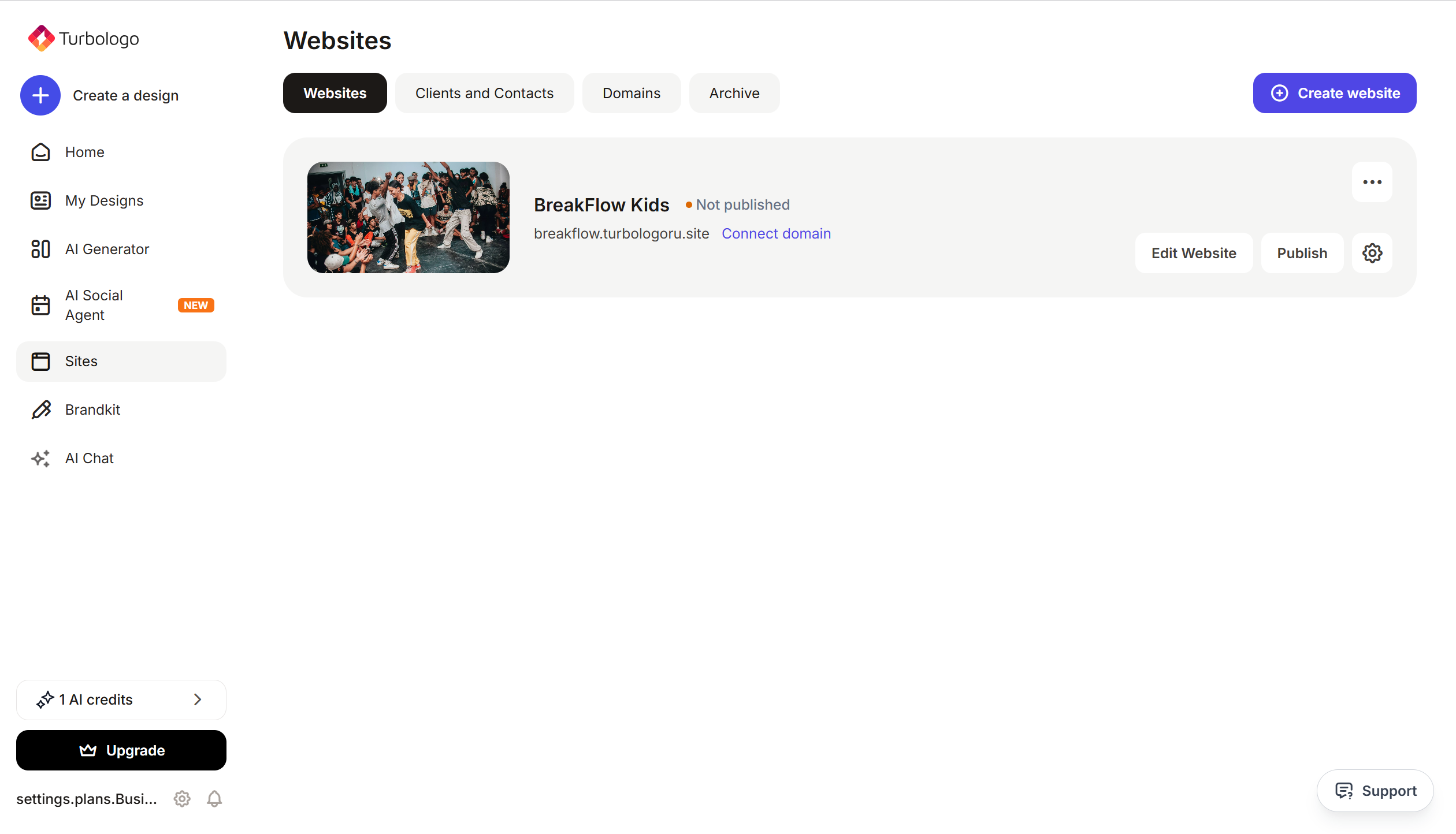
Open your website in Turbosite.
-
Go to Site Settings → Integrations → HTML code in
<head>(this is the service part of the page — visitors do not see it, but scripts are loaded from there when the site is opened).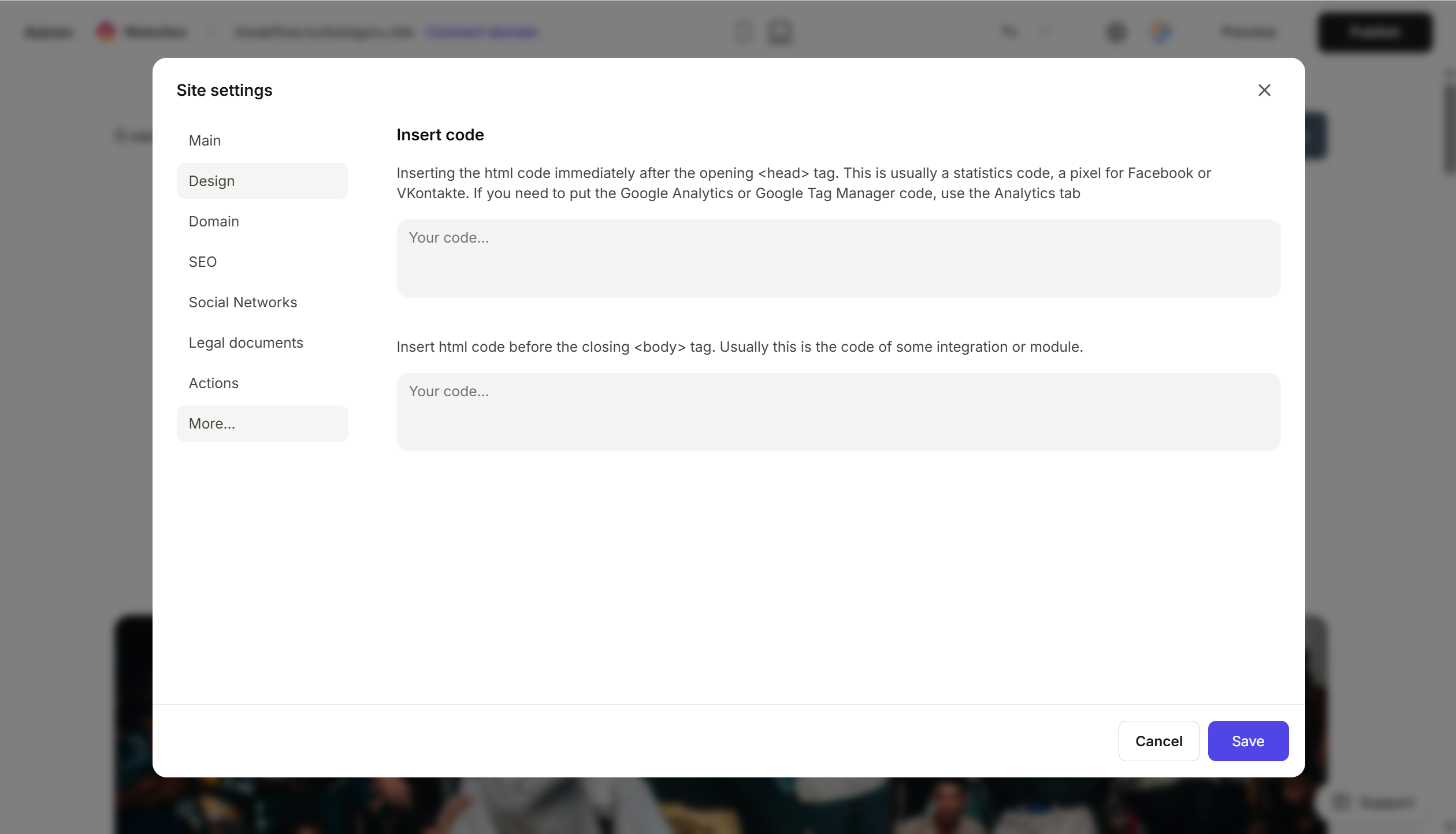
- Paste the Jotform code.
- Save and publish.
Step 4. Verify that the form works
- Open the published website.
- Find the form or trigger the popup.
- Fill it out and submit.
- In Jotform → Submissions, an entry should appear. You should also receive an email notification (if configured).
FAQ
Can I accept payments through the form? Yes. In Jotform → Add Element → Payments, there are integrations with Stripe, PayPal, Square, 2Checkout, and others. The customer fills out the form and pays immediately.
How much does it cost? Free plan — 5 forms, 100 submissions/month, 100 MB of storage. Paid plans — from $34/month (1,000 submissions) to Enterprise. Pricing page.
How does Jotform differ from Typeform and Tally? Jotform is the most universal, with a focus on complex forms and payments. Typeform offers premium UX and design. Tally is simple and free.
Can I remove the Jotform branding? On the free plan — no, there will be “Powered by Jotform” at the bottom of the form. On paid plans — yes, in the form settings.
The form is not loading. If you are using an iframe — check that the HTML block is on the page. If using JavaScript — check the browser console for errors. Also, check for ad blockers.
Where to look next
- Jotform Knowledge Base — official documentation
- How to embed your form — step-by-step guide
- Jotform Pricing — current prices






