
How to connect Google Analytics 4 to a Turbosite website
Google Analytics 4 (GA4) is a free web analytics service from Google. It shows the number of visitors, traffic sources, website behavior, and conversions. It is the standard for the international market and websites with an international audience. Connection takes 10–15 minutes.
What you will need
- A Google account — free registration
- A published website on Turbosite
- 10–15 minutes
Step 1. Create an account and property in Google Analytics
- Open analytics.google.com and sign in to your Google account.
- If you are here for the first time, click “Start measuring”.
- Enter an account name (e.g., your company name). Check the data sharing settings as you see fit.
- Create a property: enter a name (e.g., your website name), time zone, and currency.
- Fill in business information: industry, company size, and business objectives.
- Accept the terms of service.
📷 Screenshot: resource creation window with filled-in fields.
Step 2. Create a data stream and get the code
- In the platform selection step, click “Web”.
- Enter your website URL (e.g.,
https://mysite.com) and a stream name. - Click “Create stream”.
- A window with stream details will open. Find the “Google tag” block → “View tag instructions”.
- Select the “Install manually” tab.
- Copy the entire code (this is the
<script>block with gtag.js).
📷 Screenshot: window with gtag.js code and a copy button.
⚠️ Check for relevance: the GA4 interface is updated regularly. If the button layout is different, look for the keywords “Data Stream”, “Web”, “gtag.js”, “Install manually”.
Step 3. Insert the code into Turbosite
-
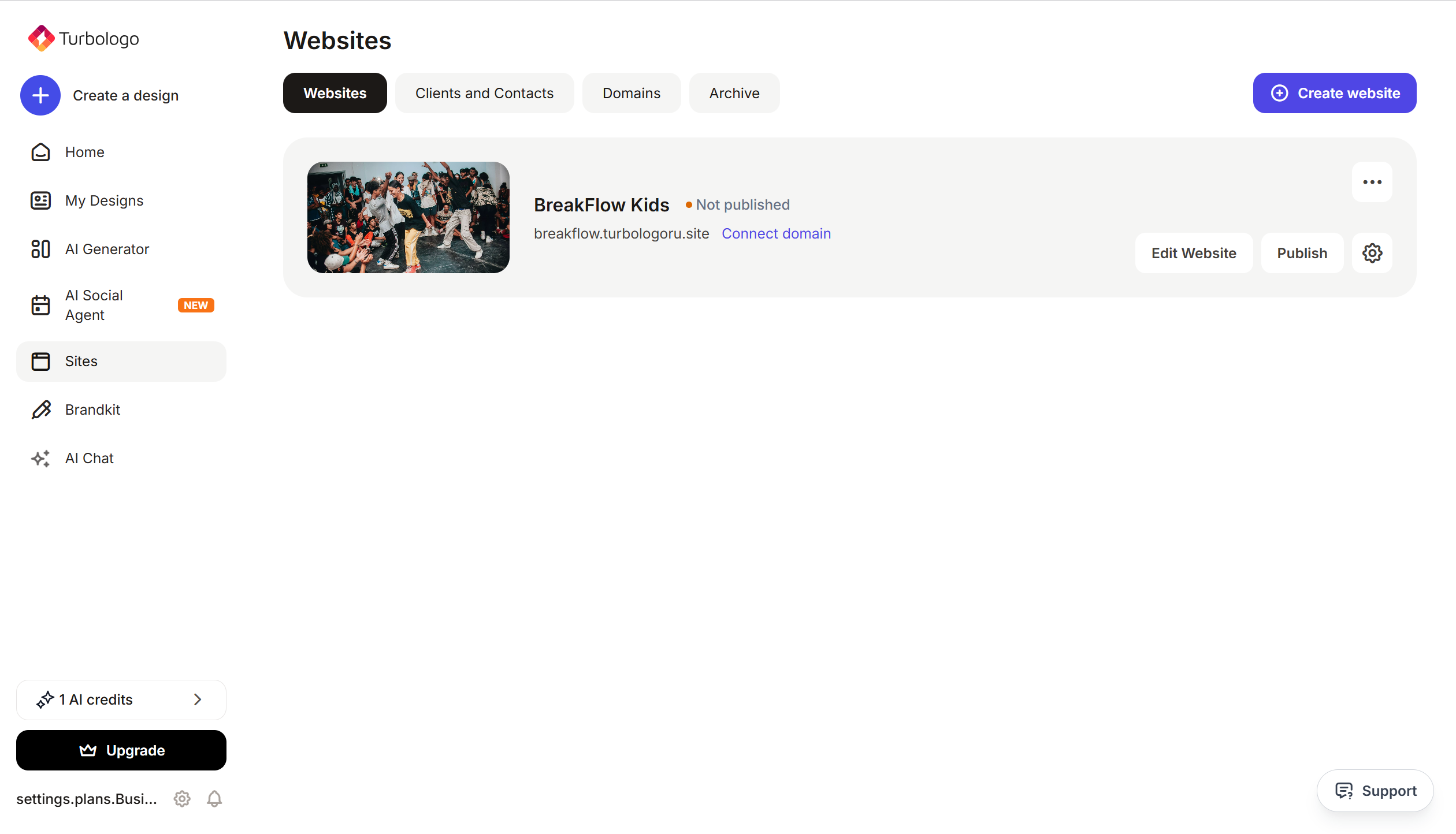
Open your website in Turbosite.
-
Go to Site settings → Integrations → HTML code in
<head>(this is the service part of the page — visitors do not see it, but scripts from there are loaded when the site is opened).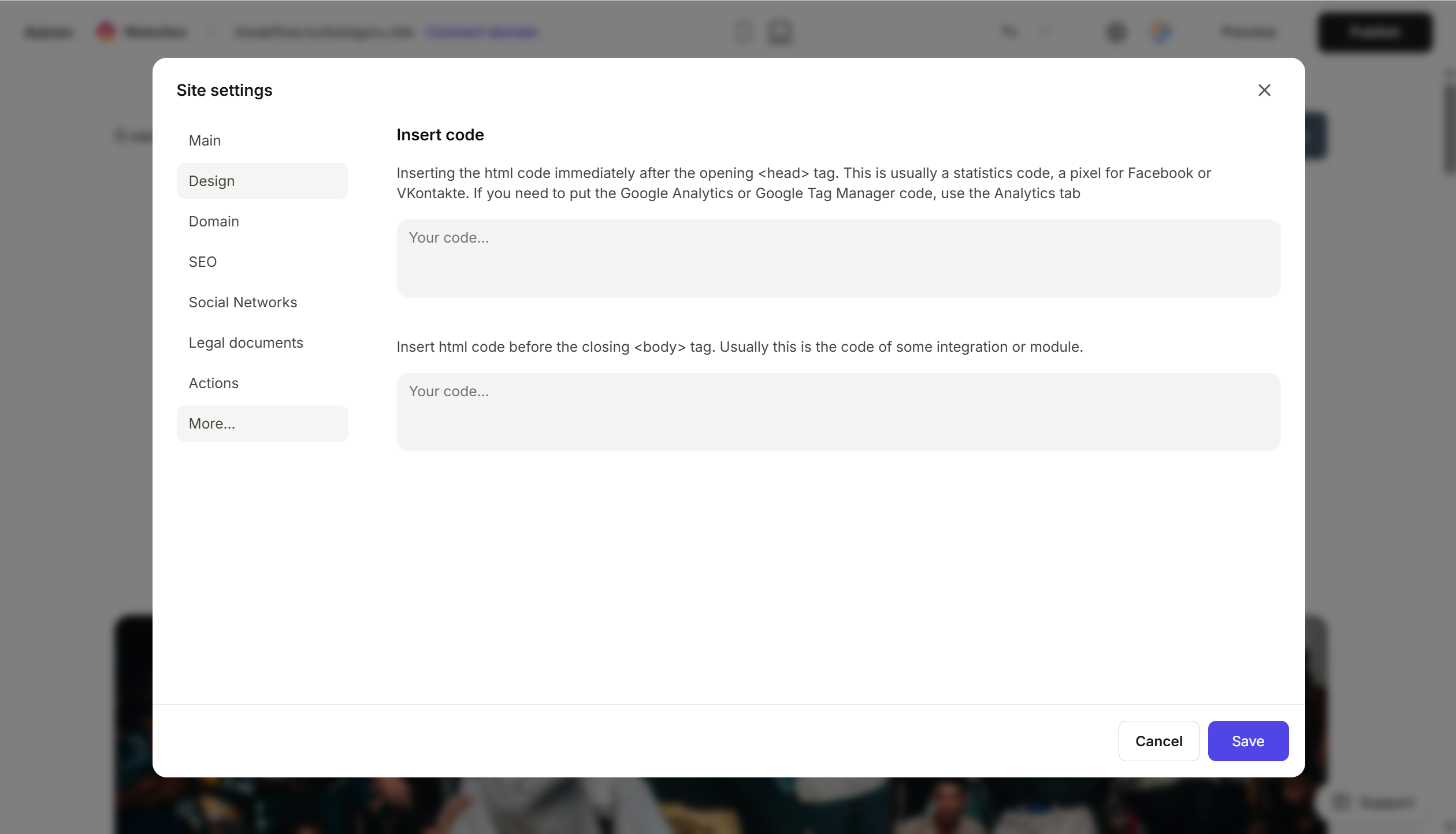
- Paste the copied GA4 code into the field.
- Save the changes.
- Publish the site.
Step 4. Verify that the counter is working
The counter is invisible on the site, so you need to check it in Google Analytics itself.
- Open your published website in a new tab.
- Return to Google Analytics → “Reports” → “Realtime”.
- Within a minute, at least one active user should appear in the report — that is you.
If there is no data, check that the code is fully pasted, the site is published, and browser blockers (uBlock, Adblock, Ghostery often block Google) are disabled.
Frequently Asked Questions
How to set up event and conversion tracking? In GA4, many events are collected automatically (page views, scrolls, outbound clicks). Custom events and conversions are configured in Admin → Events within Google Analytics itself. You usually do not need to change the code on the site.
Can I use GA4 and Yandex Metrica at the same time?
Yes. Simply paste both codes into the same HTML field in <head> — they work independently of each other.
Is user consent (GDPR) required in Europe? Yes. If you have an audience from the EU, you need a cookie consent banner (CMP). GA4 supports Consent Mode — we recommend setting it up through a separate service (Cookiebot, CookieYes).
Data does not appear in standard reports. In “Realtime” reports, data is visible immediately; in others, there is a delay of 24–48 hours. This is normal for the first connection.
Where to look next
- Google Analytics Help — official documentation
- Install Google tag (gtag.js) — official instructions
- Google Tag Manager — if you plan to connect many counters and pixels






