
How to connect T-Kassa (Tinkoff Kassa) to a Turbosite website
T-Kassa (formerly Tinkoff Kassa) is an internet acquiring service from T-Business (Tinkoff). It accepts payments via cards, SBP, T-Pay, SberPay, installments, and Dolyame. Key benefits include fast integration, quick payment buttons, and a user-friendly personal account. Connection is free, and the commission ranges from 1% to 2.5% depending on the tariff. Setup takes 10–15 minutes.
What you will need
- A current account with T-Business or connected internet acquiring from T-Kassa — connect at tbank.ru/business
- A published website on Turbosite
- 10–15 minutes
⚠️ Important: To connect internet acquiring, you need to be an individual entrepreneur (IP), a limited liability company (OOO), or self-employed. Connection and verification usually take 1–3 days.
Step 1. Connect to T-Kassa
- Submit an application at tbank.ru/business/payments/acquiring or connect acquiring via the T-Business app.
- Wait for approval and signing of the contract (1–3 days).
- In your personal account, create a store — this is the entity to which your website will be linked.
- Save the Terminal Key (store identifier) and terminal password — you will need them to set up payments.
Step 2. Get the quick payment button code
In T-Kassa, the easiest way for a single-page website is the quick payment button.
- Log in to your internet acquiring personal account.
- Go to “Stores” → select your store → “Buttons and integrations”.
- Create a quick payment button:
- Specify the product name and description.
- Set the amount (fixed or with the option for the customer to enter it).
- Select payment methods.
- Click “Get code”.
- Copy the entire generated HTML code.
📷 Screenshot: “Buttons and integrations” section with button settings and generated code.
⚠️ Check for updates: The T-Business interface is updated frequently. If the sections are named differently, look for “Payment button”, “Ready-made solutions”, or “Integrations”.
Step 3. Insert the code into Turbosite
The payment button should appear on the page in the desired location — usually next to the product or service description.
- Open your website in Turbosite.
- Add an “HTML-code” block to the desired place on the page.
- Paste the T-Kassa code.
- Save the changes.
- Publish the website.
📷 [Turbosite screenshot — to be added: HTML-code block in the page body with the T-Kassa payment button].
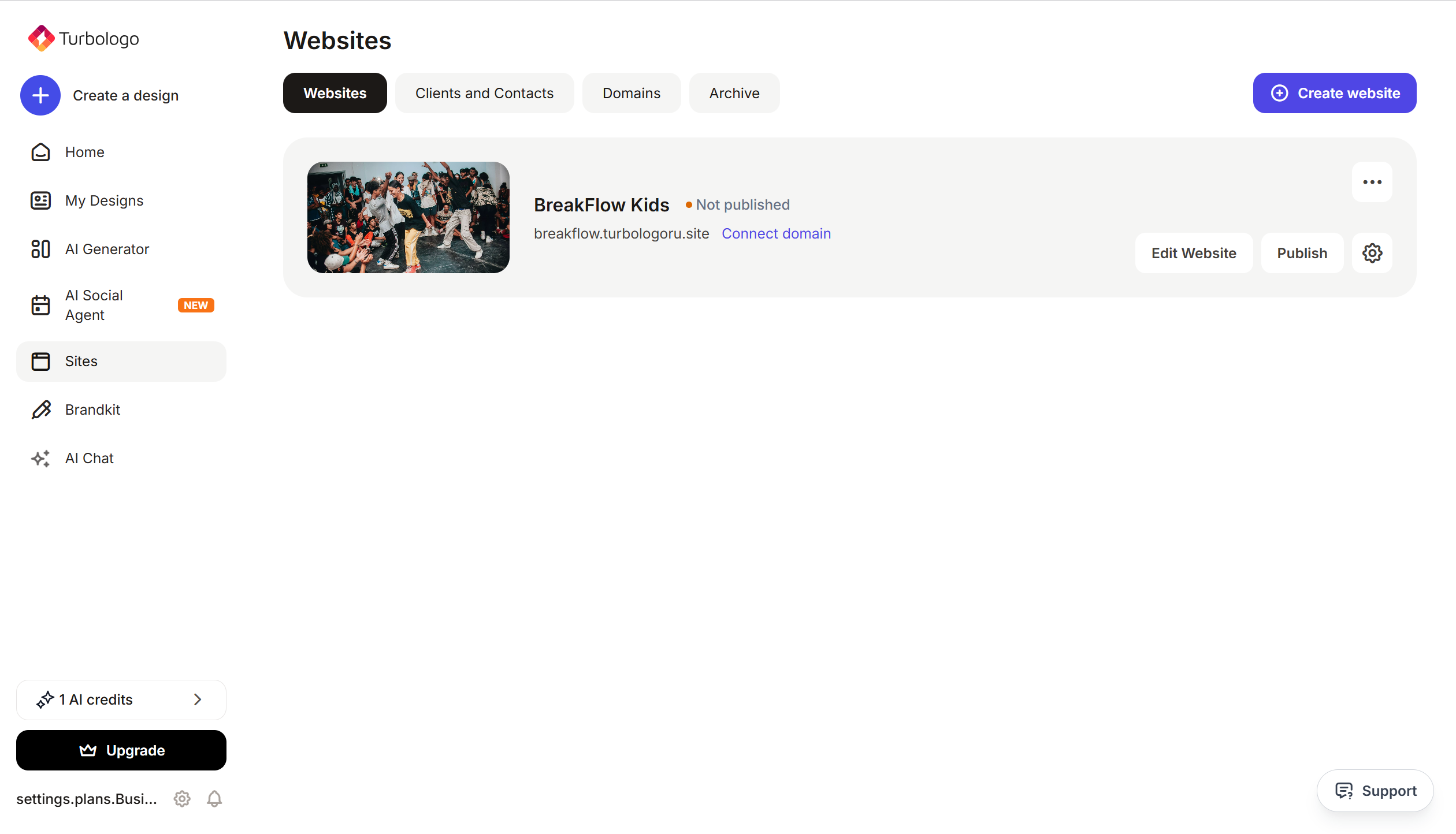
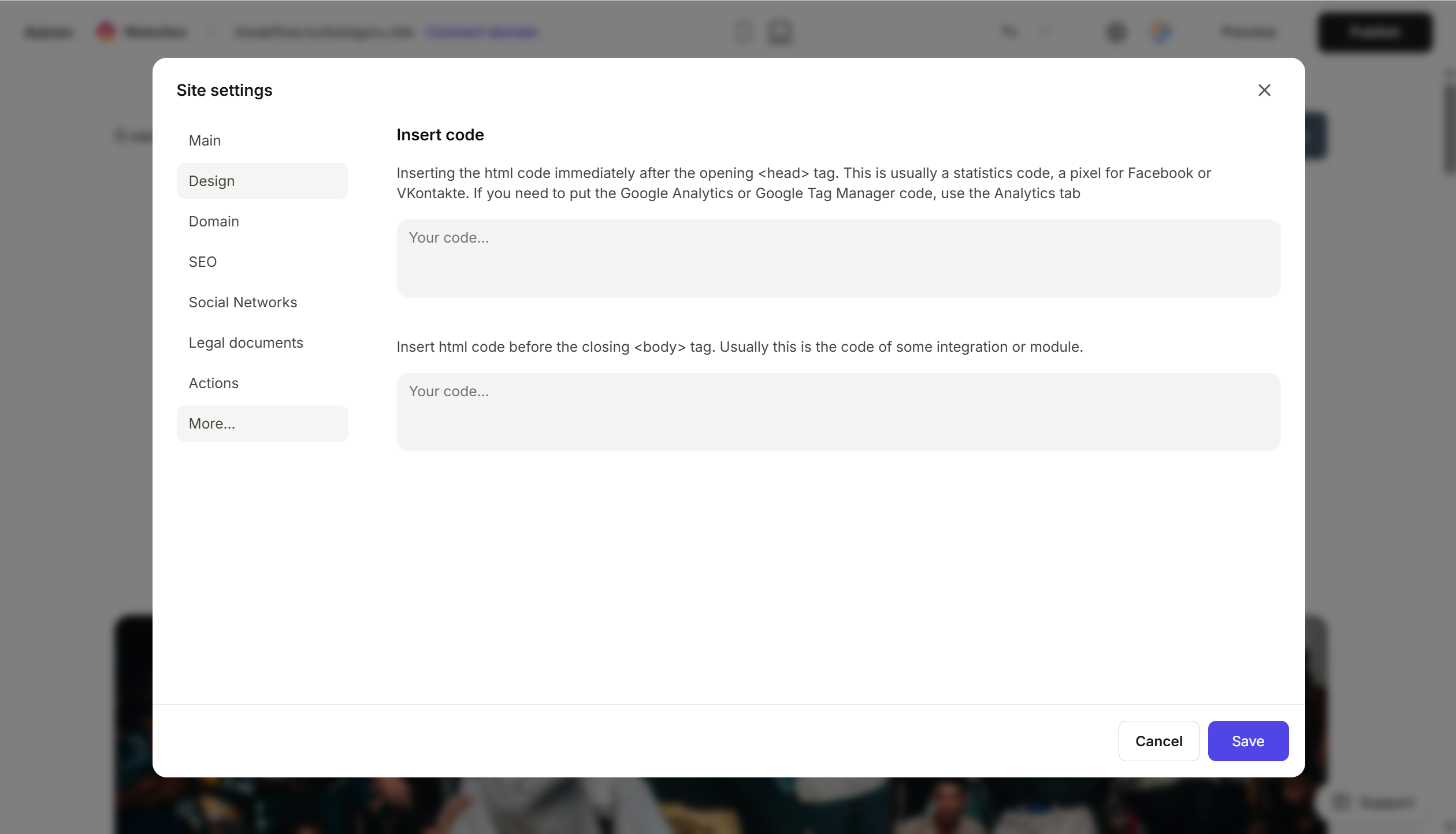
If the button should be global (e.g., a floating button), insert the code in Website settings → Integrations → HTML-code in <head>:
Step 4. Verify that payment works
- Open the published website.
- Click the payment button.
- The T-Kassa payment form or a QR code for payment via a banking app will open.
- Make a test payment for a minimum amount to ensure everything is working and funds are reaching the account.
FAQ
Do I need an online cash register to send receipts? According to 54-FZ, yes, if you work with individuals. T-Kassa has a built-in solution — a cloud-based online cash register, which can be connected in your personal account and automatically sends receipts.
How long does it take for money to reach the account? 1–2 business days, depending on the payment method chosen by the customer.
Can I create a reusable payment link? Yes, the personal account has a “Reusable link” tool — it can be sent to a client in any messenger or inserted as a link on a “Buy” button.
What is the commission? From 1% to 2.5% per successful payment — it depends on the tariff, turnover, and payment method. Check with your manager or in your personal account.
Where to look next
- T-Business help on acquiring — official documentation
- Integrating payments on a website — step-by-step guide
- API for developers — if you need fine-tuning






